
Overview
This tutorial explains how to set up & configure a new template file in Creative Studio.
Table of Contents
Questions?
|
Tool Owner |
Creative Studio team |
|
Slack Channel |
#alli-creative-engine |
|
Author |
Prerequisites
Creative Studio leverages layered HTML5 template files to manage dynamic content inputs. Please refer to the technical documentation before setting up a template file to upload to Creative Studio.
Creating A New Template
-
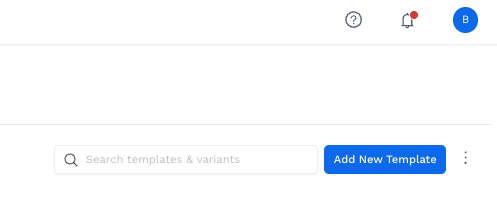
To create a new template in Alli Select the
New Templateaction at the top of the templates & variants page
-
Give your template a name & select the asset type you would like to set this template up for
-
Drag or upload your formatted HTML5 template file into the Upload Template File section
-
Confirm the template file successfully loads & hit
Save Template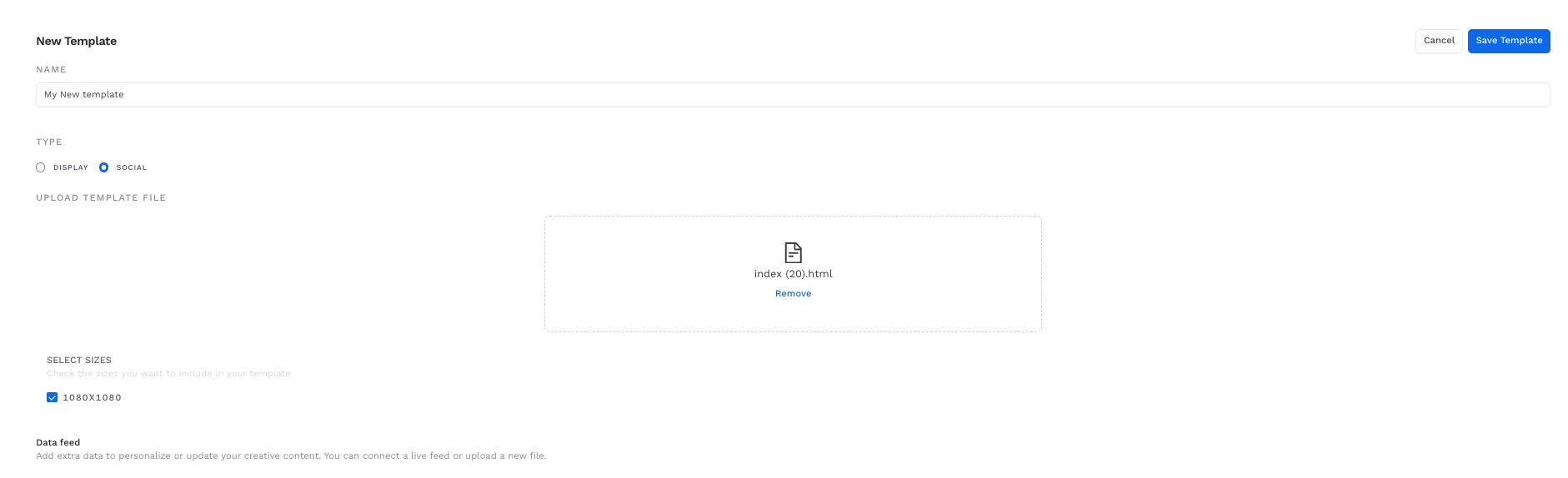
Creative Studio will throw an error code if your template file is not configured correctly. If you receive an error code, reach out to the support team to troubleshoot the template files setup.
[Optional] Adding Supplemental Feeds
Supplemental feeds enable you to manage bulk creation with ease by connecting data from Alli to elements in your template file. Think headlines that automatically pull product names from your product feed, or images that populate with hotel snapshots from a hotels feed.
-
Select your supplemental feed type. Creative Studio currently supports two feed types:
-
Alli Data Source: Pulls data from Alli data (including data from Alli Products)
-
Upload: Upload a static file (useful for quick testing or adding data values that do not change)
-
-
Give your supplemental feed a name
-
Select the Primary Column from your supplemental feed
-
Click
Update Supplemental Feedto save the feed configuration
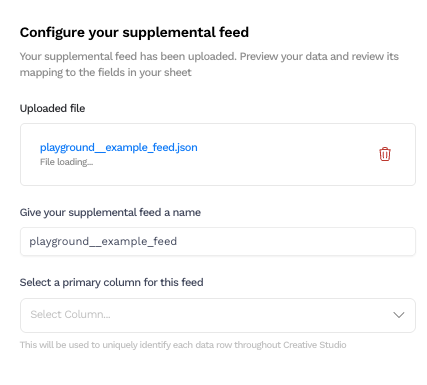
The Primary Column must contain a unique value such as a product SKU or unique ID. Ensure that you have at least one column that can be used to uniquely identify each data row throughout Creative Studio.
[Optional] Supplemental Feed Column Mappings
Columns from Supplemental feeds can be used to automate bulk creation inside your Creative Studio template. Mappings enable you to connect data to specific inputs in your design files.
Setting Up Column Mappings
Each column from your primary feed (Creative Studio design elements & columns) will appear on the left side of the mapping & you will select the items from your supplemental feed data sources on the right.
-
Select which feed you will be mapping the column value to
-
Select the column from your supplemental feed that you would like to assign to the Creative Studio element

Not all columns need to be mapped to a column from your supplemental feed. When using supplemental feeds only assign the values you want to replace with data-driven inputs.