
Delivery to Alli Products is in early access Beta & new features will be added to the tool. Some processes are currently manual and subject to change as the product moves toward general availability.
Overview
This tutorial explains how to configure delivery to Alli products using Creative Studio.
Table of Contents
Questions?
|
Tool Owner |
Creative Studio team |
|
Slack Channel |
#alli-creative-engine |
|
Author |
No contributors found for: authors on selected page(s) |
Prerequisites
The following must be completed before delivery to Alli Products can be configured.
-
Creative Studio Template: A template file must be uploaded & active in Alli
-
Delivery Schedule: Must be active & saved in the template file
-
Approved Variants: At least one variant must be approved in Creative Studio
-
Product Feed: Must be set up in Alli products & connected to your desired ad destination creative
Setting Up Alli Products Delivery
Creative Studio Setup
-
Template Configuration: Follow the steps outlined in the https://help.alliplatform.com/creative-insights/Working-version/creative-studio-end-to-end-how-to-guide#Before-You-Start:-Requirements to ensure the template files is ready to deliver to Alli.
-
Generating the Data Source Link: During the beta phase, Creative Studio will automatically generate a data source for you called
{client}.creative_studio_creatives-
This data source will already be created for you, you will not need to generate a new data source for delivery.
-
When you trigger a
Render & DeliverorDeliver Onlyaction from the template editor, rendered creatives will be sent to this data source. -
Action Item: Check the data source to ensure data is flowing into it & copy the data souce URL to your clipboard
-
Handoff to Alli Products Team
-
Submit a Feeds Ticket: Create a new Product Feeds Support ticket using the link here
-
Required Information:
-
Summary: Creative Studio Project Name
-
Feed Client: You client’s brand name
-
Feed: Target Alli Products feed
-
Creative Studio Datasource: The data source link from step 1
-
Merge Logic: Details for how you would like to implement the delivery
-
Ex. “assign Creative Studio images to the
alternate_imagecolumn” or “replace theprimary_imagein my feed with images from Creative Studio.”
-
-
-
SLA/Expectations: Typical turnaround for feed connection is 24-48 hours.
Delivery timelines to the platform from Alli products can vary by platform & catalog volume. Once the product feeds team exports to your ad destinations, it can take up to an hour for results to populate in the platform.
Verification & Troubleshooting
QA Steps In Meta
-
Open
Commerce Managerfrom the sidebar in Meta Ads -
Search & locate your client’s product catalog
-
Navigate to Catalog>Products
-
Select a product from the feed
-
Confirm if the product image contains the correct elements from Creative Studio
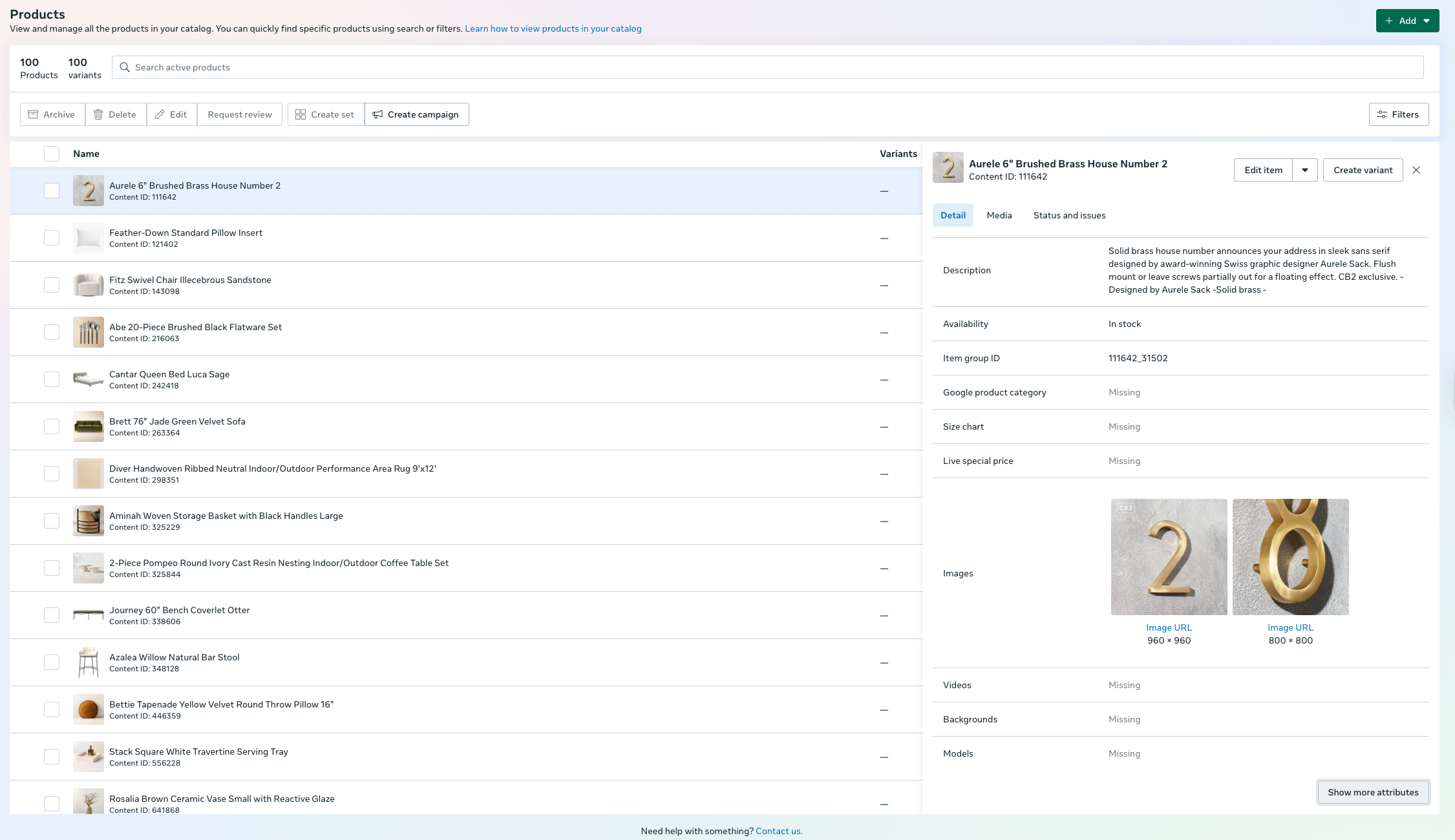
The position of your Creative Studio assets will depend on the instructions you provide during the feeds ticket submission process. Ex. if you requested to replace the primary image in the feed, you will see the Creative Studio image as the first image listed.