
If you need to manually pull data, here’s how to run and backfill:
✅ Step-by-Step Instructions
-
Go to the Workflow.
-
Navigate to
Actions → Workflows -
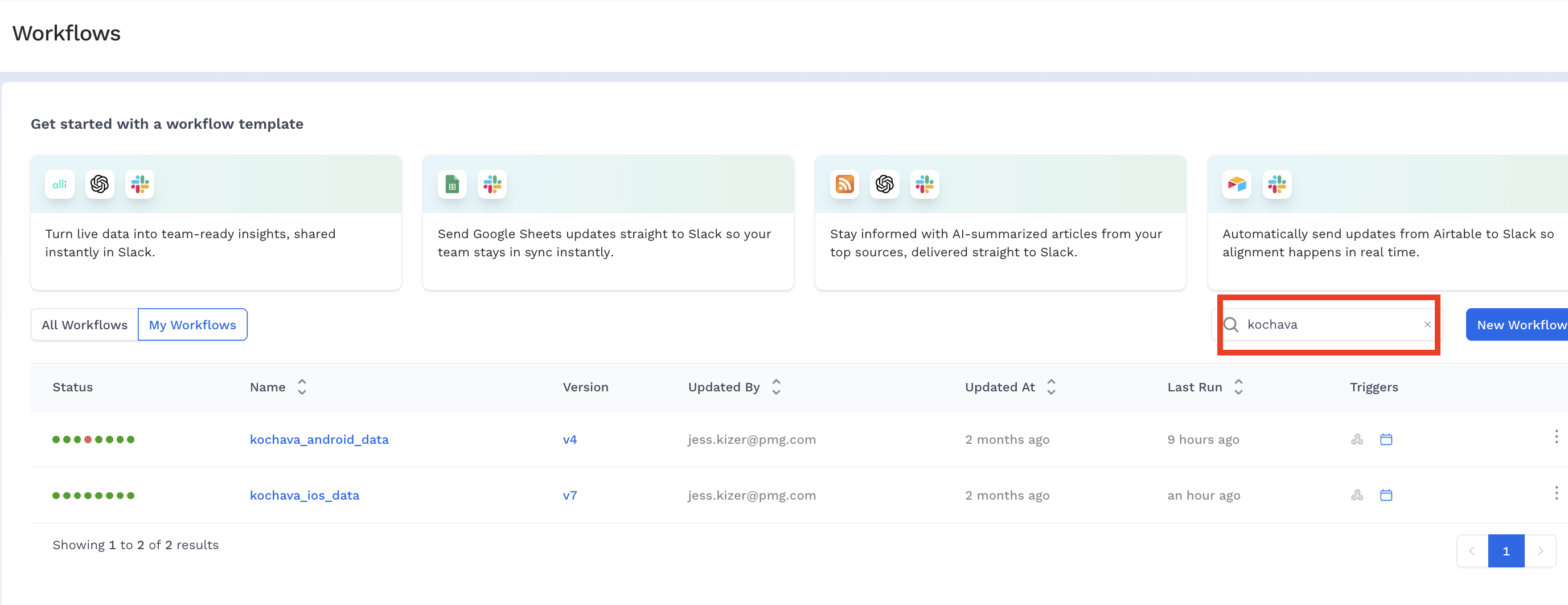
Use the search bar to find the partner (e.g., Smadex, Kochava, Appsflyer, etc.)
-
-
Click into the Workflow
-
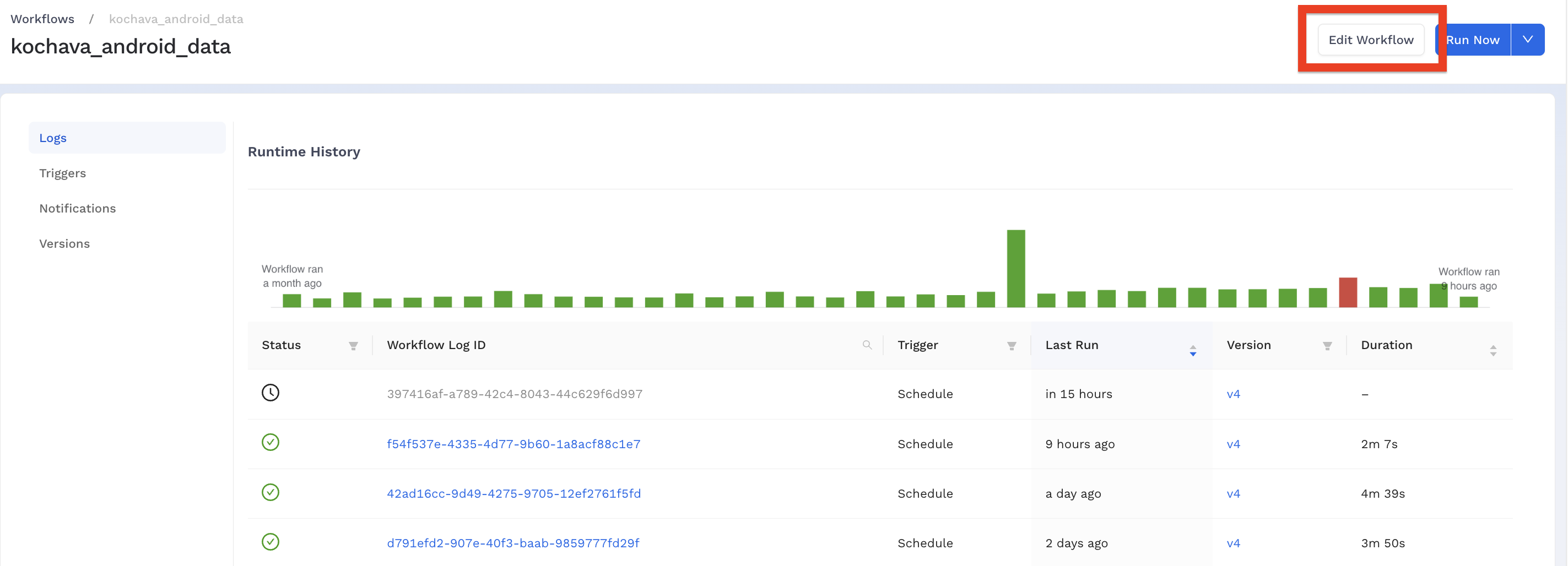
You’ll land on a screen showing previous executions. Click on
Edit Workflowin the top-right corner.
-
-
Backfill Dates
-
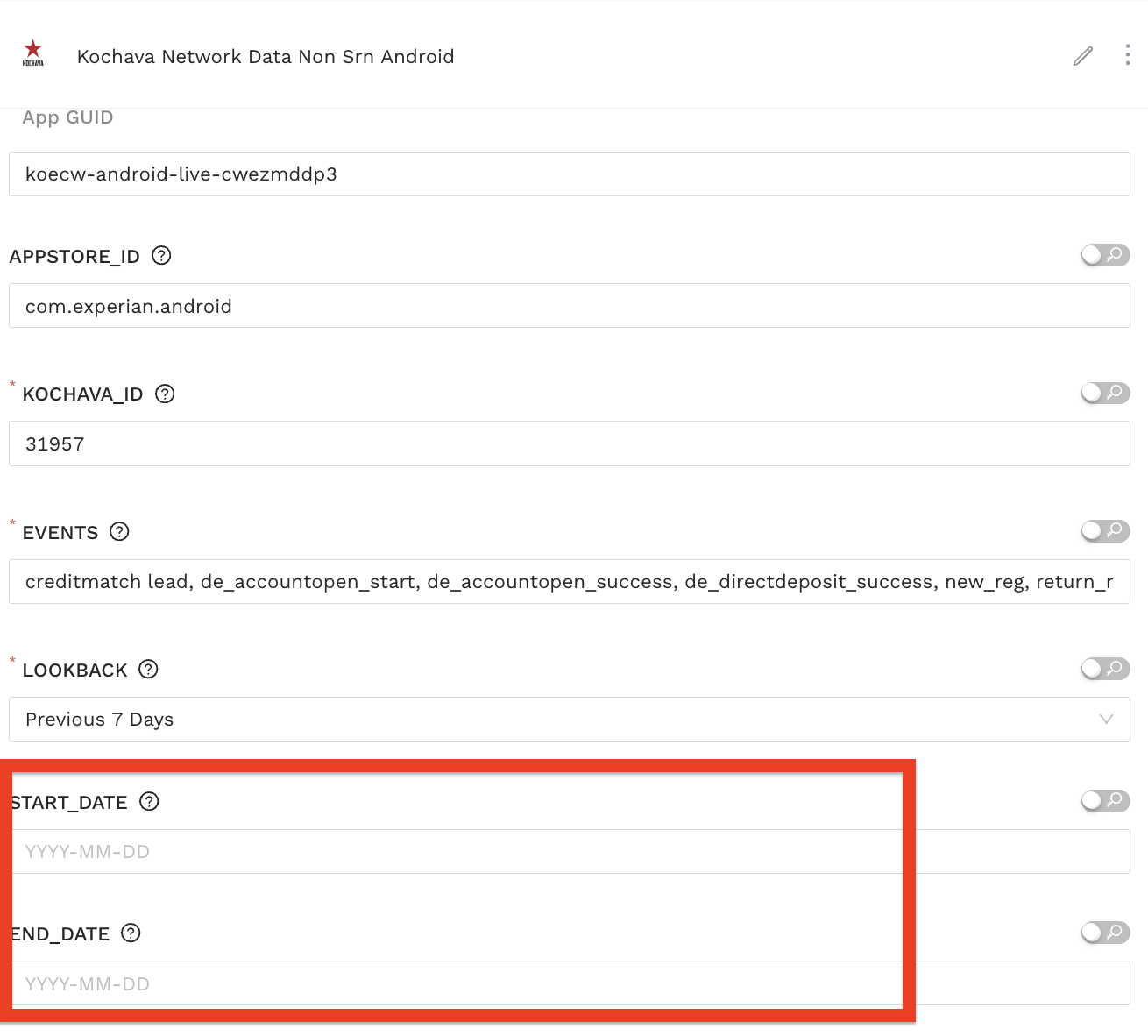
Click on the job you want to backfill.
-
Add a custom
start_dateandend_dateinYYYY-MM-DDformat. -
Or leave dates blank to just pull for a set lookback period (the automated default).
-
-
Click “Save & Run”
-
Once you’ve entered the correct date(s), click
Save & Runin the upper right corner. The data will be automatically sent to the correct datasource. -
You will need to wait for the datasource to load after each execution.
-
This can take up to 10-20 minutes, or you can press the “Load Data” button in the datasource to speed things up.
-
-
⚠️ Important: Be sure to clear the dates in the workflow and set them back to default after backfilling so that future runs don’t reuse those values.
🚧 If the App Fails:
-
Try running it again or try with a shorter date range (e.g, 2–3 days).
-
Click into the Execution Log and scroll to the bottom of Output to see the error message.
-
Common errors include:
-
inMobi:
501 Service Unavailabledue to failed API connection -
Moloco:
The provided token has expiredafter >1 hour runtime
-