
Here’s how to integrate mobile app performance data using publisher templates. This setup automates reporting by pulling from the publisher API and syncing it into a datasource.
To get started, you will need credentials. Reach out to your onboarding team or the PMG contact managing the account.
1. Create a New Workflow
Go to Actions → Workflows and create a new Workflow.
➕ Add Publisher Connector
-
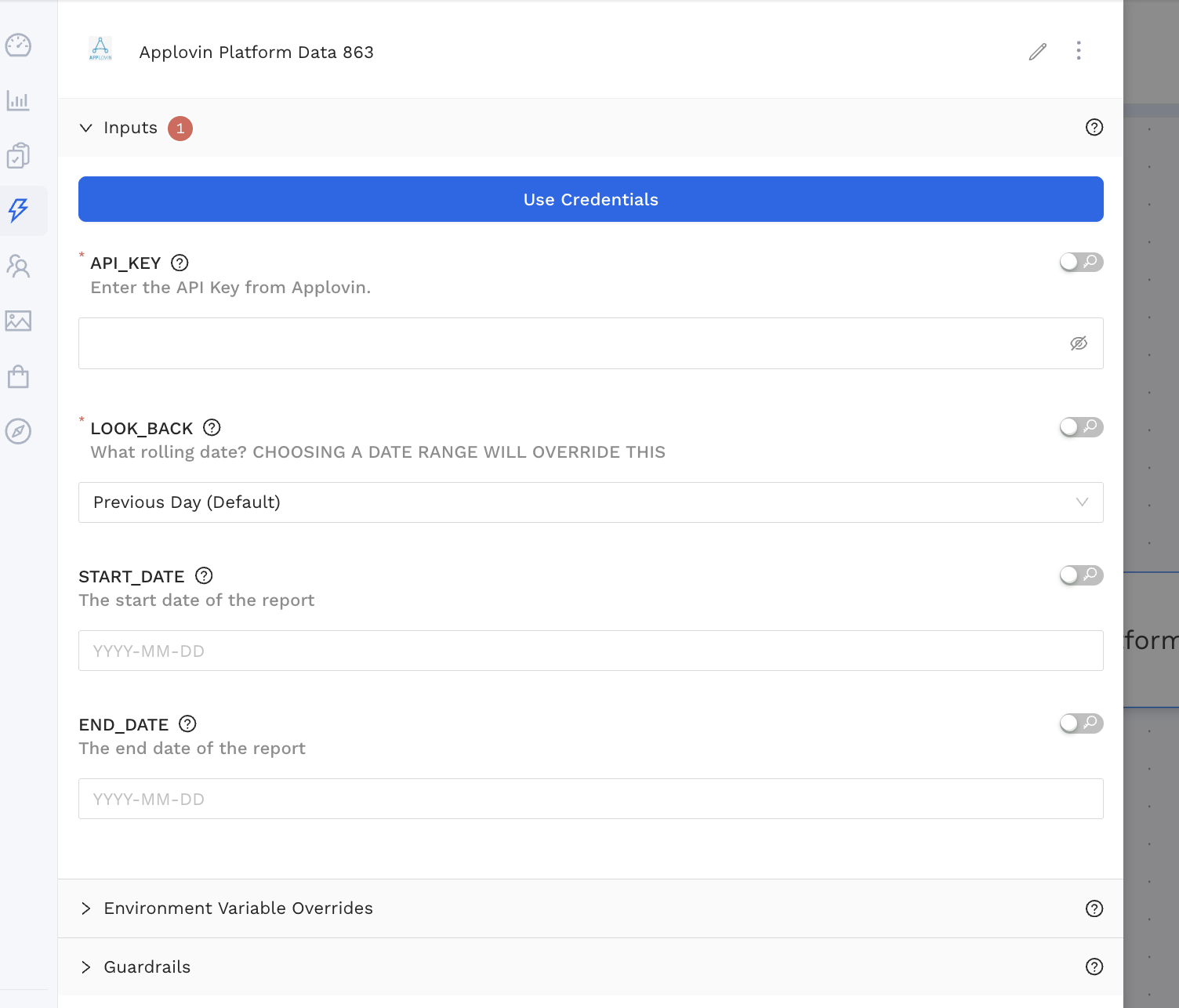
Search for your publisher’s template (e.g. Applovin, Liftoff, SensorTower, etc.)
-
Fill in the required credentials
-
(Optional) Choose a start and end date
⚠️ NOTE: Most publishers only support the last 30–45 days. Check platform limits.
➕ Add Force Sync Task
-
Add a second task
Force Sync Alli Data -
Draw a connection between the
Platform Connectorand thisForce Sync-
You will need to input the datasource ID that you create in Step 2 inside this Force Sync task.
-

▶️ Save and Run the Workflow
-
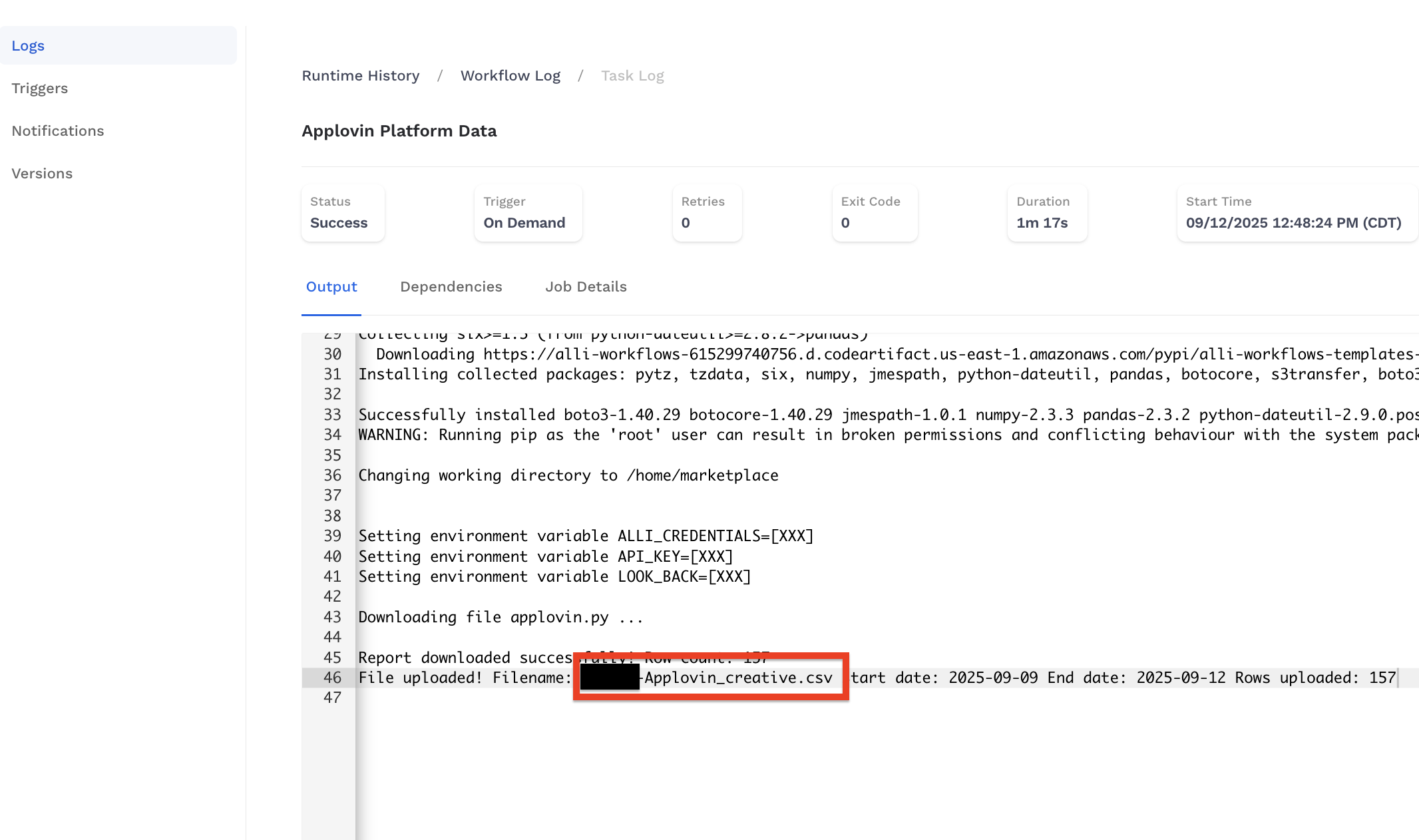
Once complete, open the latest Log
-
Copy the Filename that is printed — you will need it in Step 2
-
Don’t forget to schedule a Trigger for your workflow!!!!!!
2. Create Alli Cloud Storage Datasource
Go to Data -> Sources and add a New Datasource.
-
Select Alli Cloud Storage
-
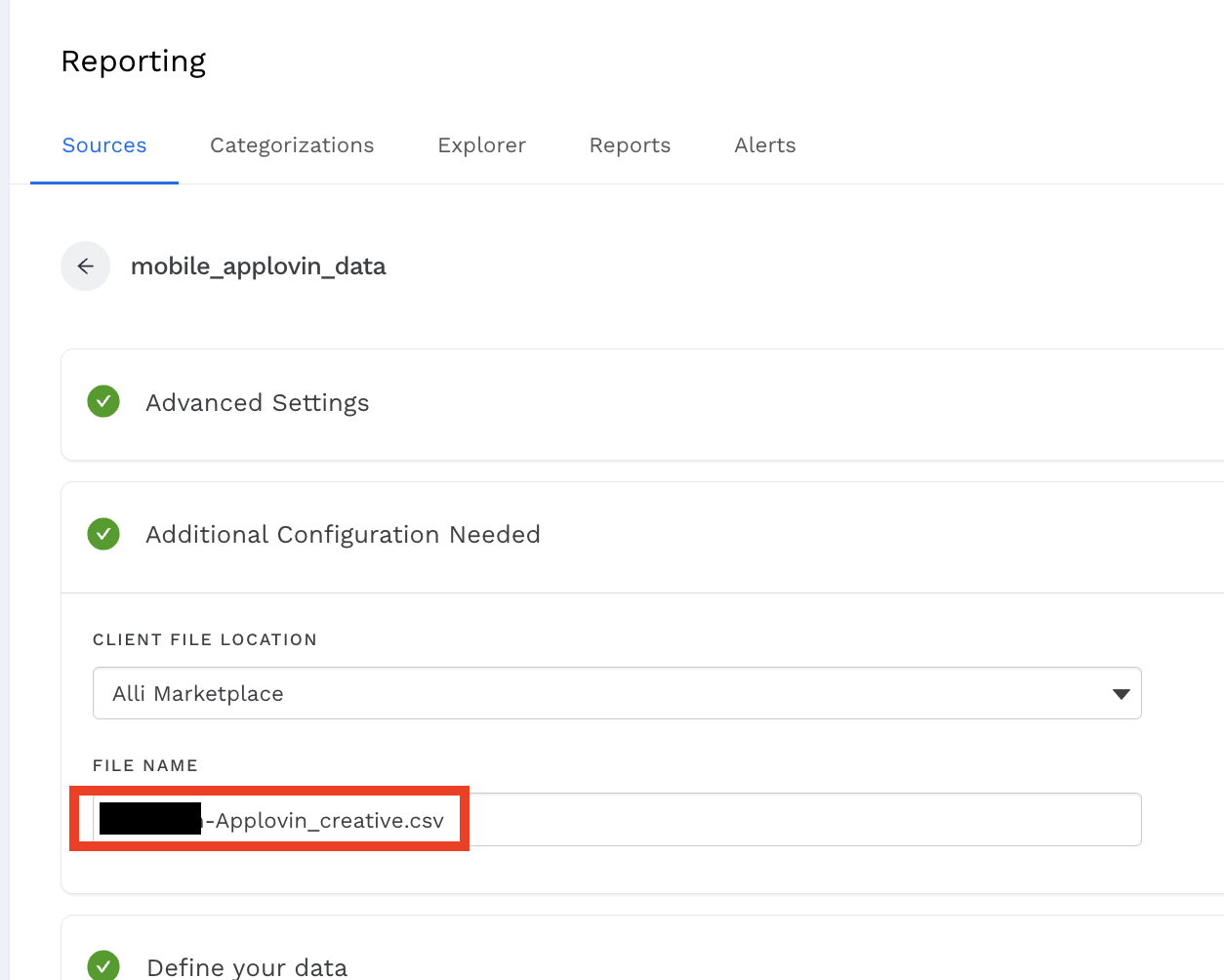
Choose Alli Marketplace as the file location
-
Paste the filename from the Log output
📊 Upload Data Schema
-
Upload the publisher’s CSV template with field names
-
Refer to the App Platform Templates & Metrics Reference page for CSV templates
-
-
Set the day / date column as
A Date Timestamp -
Set metrics as
Numbers Onlysuch as:-
impressions -
clicks -
installs -
spendorcost
-

🔗 Link Datasource to the Workflow
-
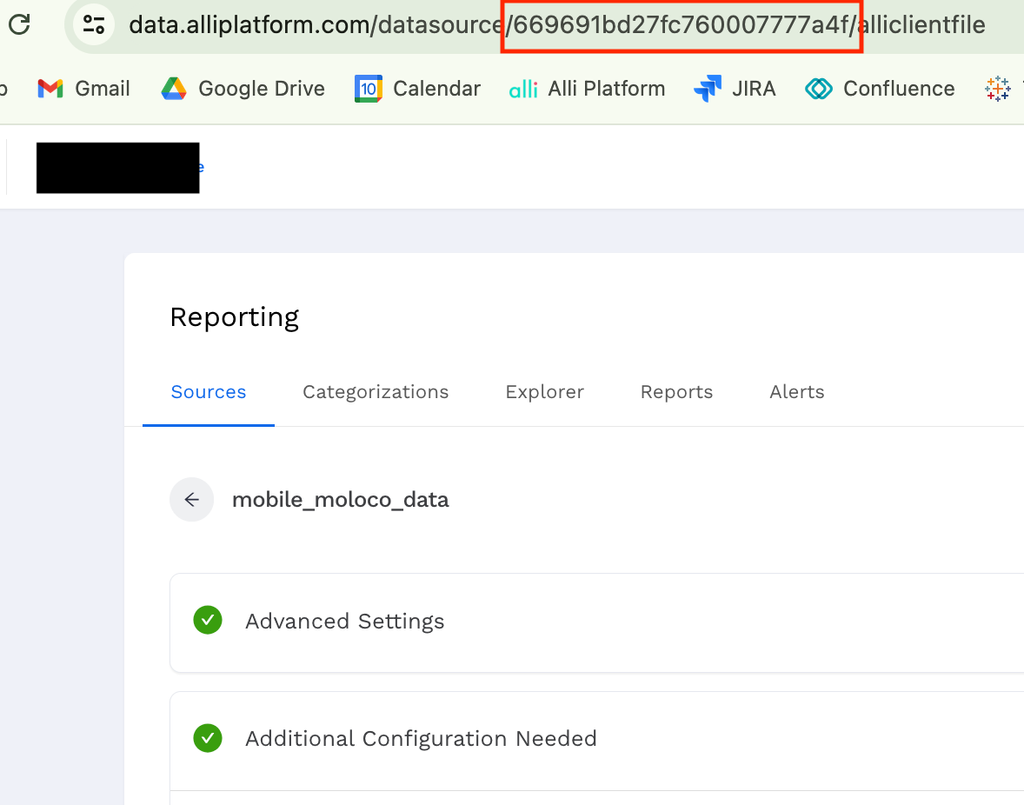
After saving the datasource, click the
Load Databutton -
Copy the ID from the datasource URL
-
Paste this ID inside the
Force Sync Alli Datatask in the workflow you created in Step 1.
Troubleshooting
Having issues? Post in our Slack channel:
#temp_mobile-dsp_apps