
Overview
This document walks you through activating/deploying a list to Pinterest. A list can be an audience list, segment or power audience.
Make sure you have authenticated Pinterest .
Instructions
-
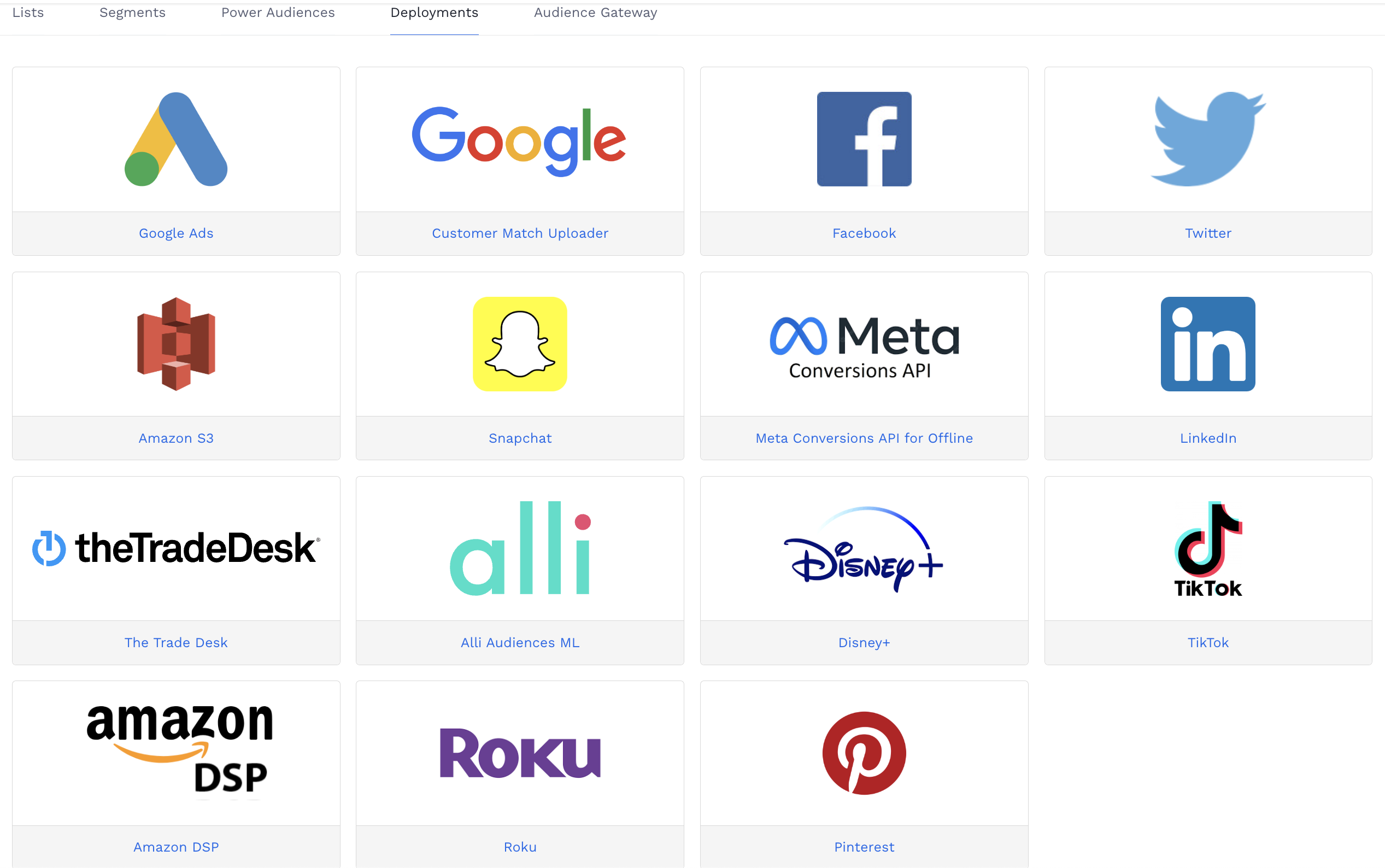
Deploy a list normally and choose Pinterest as the deployment location.
-
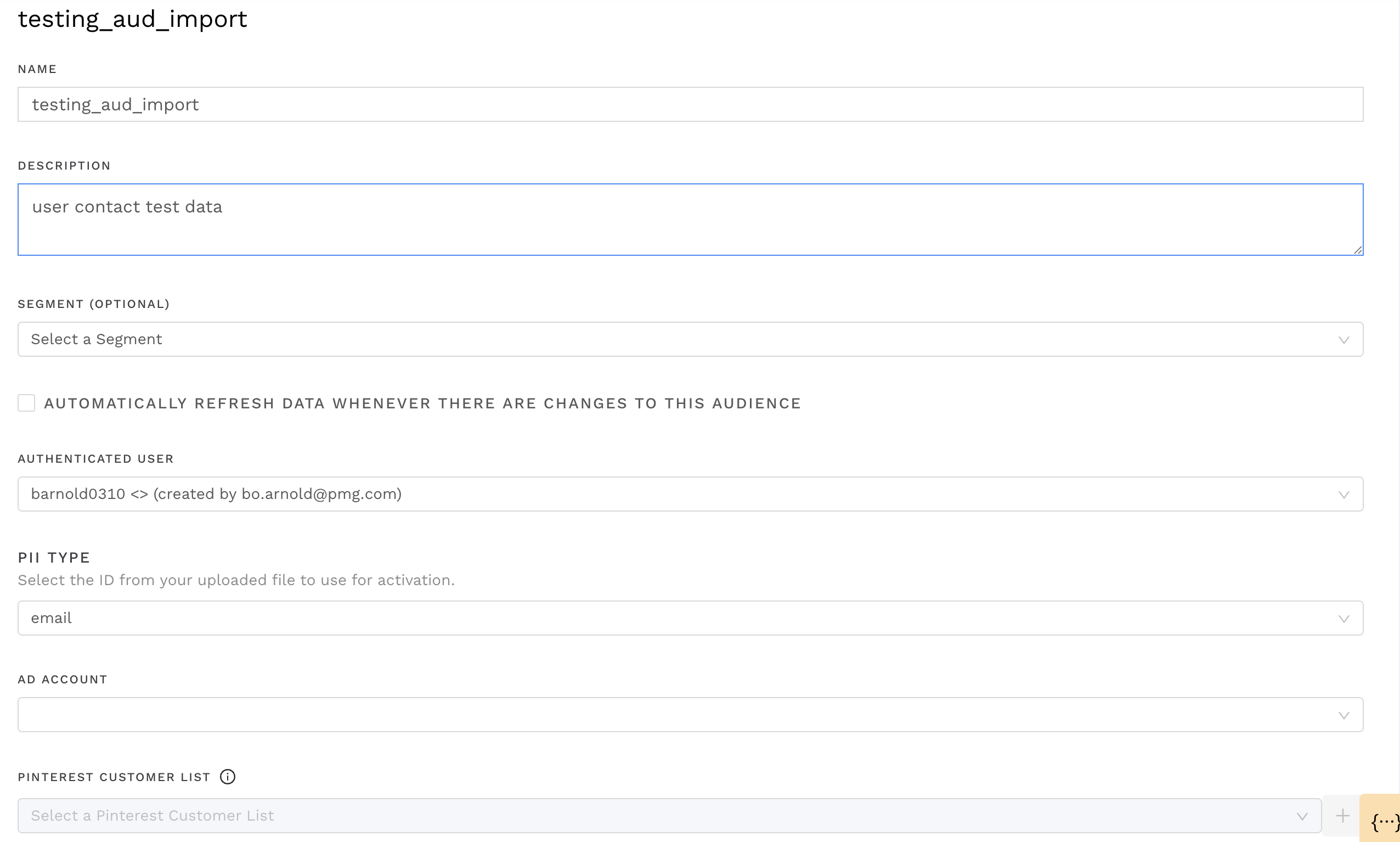
This will bring you to the deployment page for Pinterest
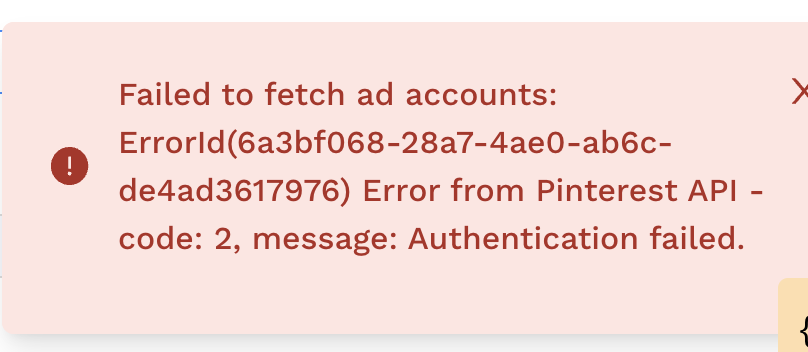
If you see the following popup on the Pinterest deployment page, please re-authenticate the user by logging in with Pinterest again on the settings page.
-
Select the authenticated user from the list. If there is only 1 user - the dropdown will be populated and selection will not be available.

-
Next select the ad account of the client from the AD ACCOUNT dropdown. If no accounts are populated in the dropdown - make sure the authenticated user has the correct access.

-
Select the PINTEREST CUSTOMER LIST to which you want to deploy.
-
If you want to create a new list, click the button + and fill out the required information
-
-
Finally click on Save & Send on the top right.