
Overview
This app will automate the manual process of deleting and refilling your datasources. This app can be set on a schedule and be set to delete and backfill for either today, the last 7 days or the last 30 days.
Instructions
-
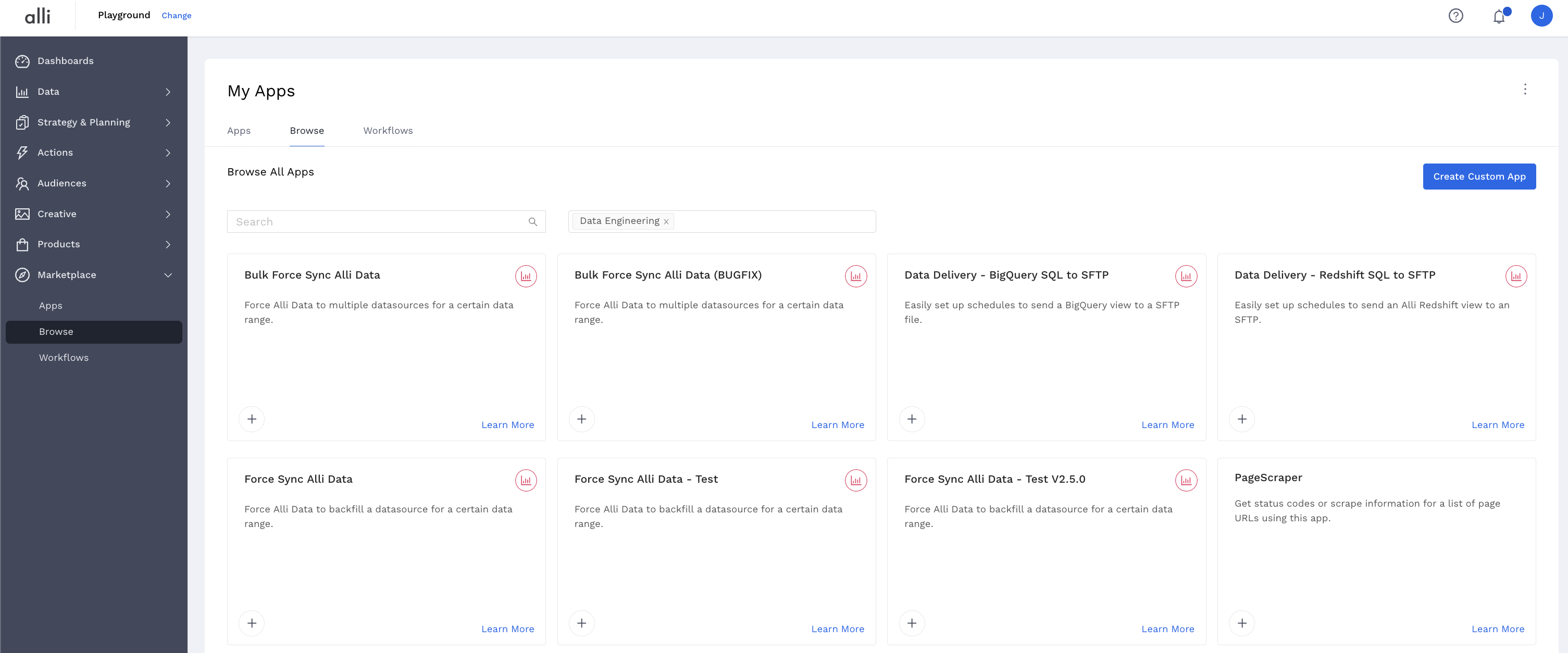
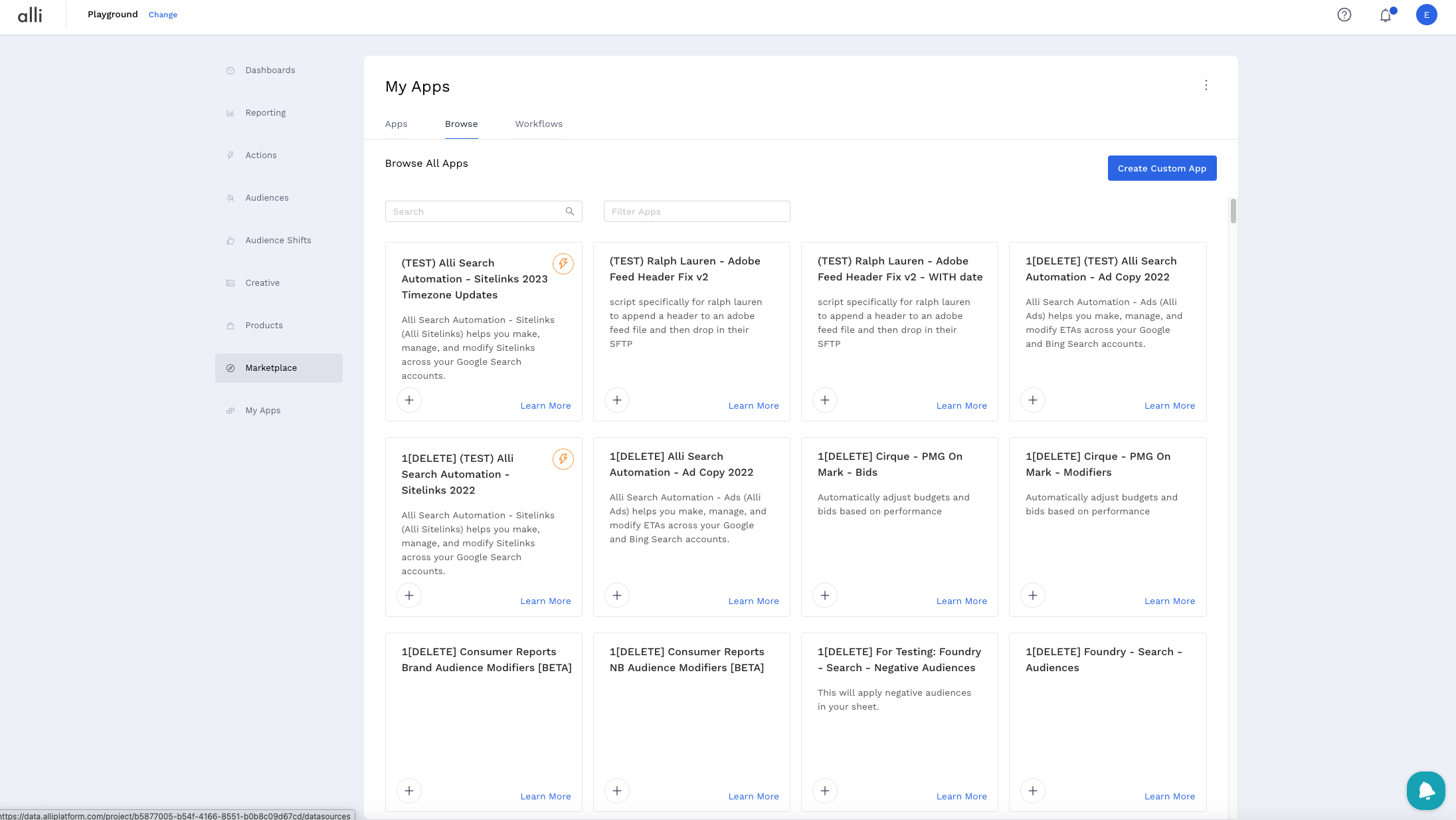
From the left hand side navigation, select Browse. This will show a list of available templates you can use.
-
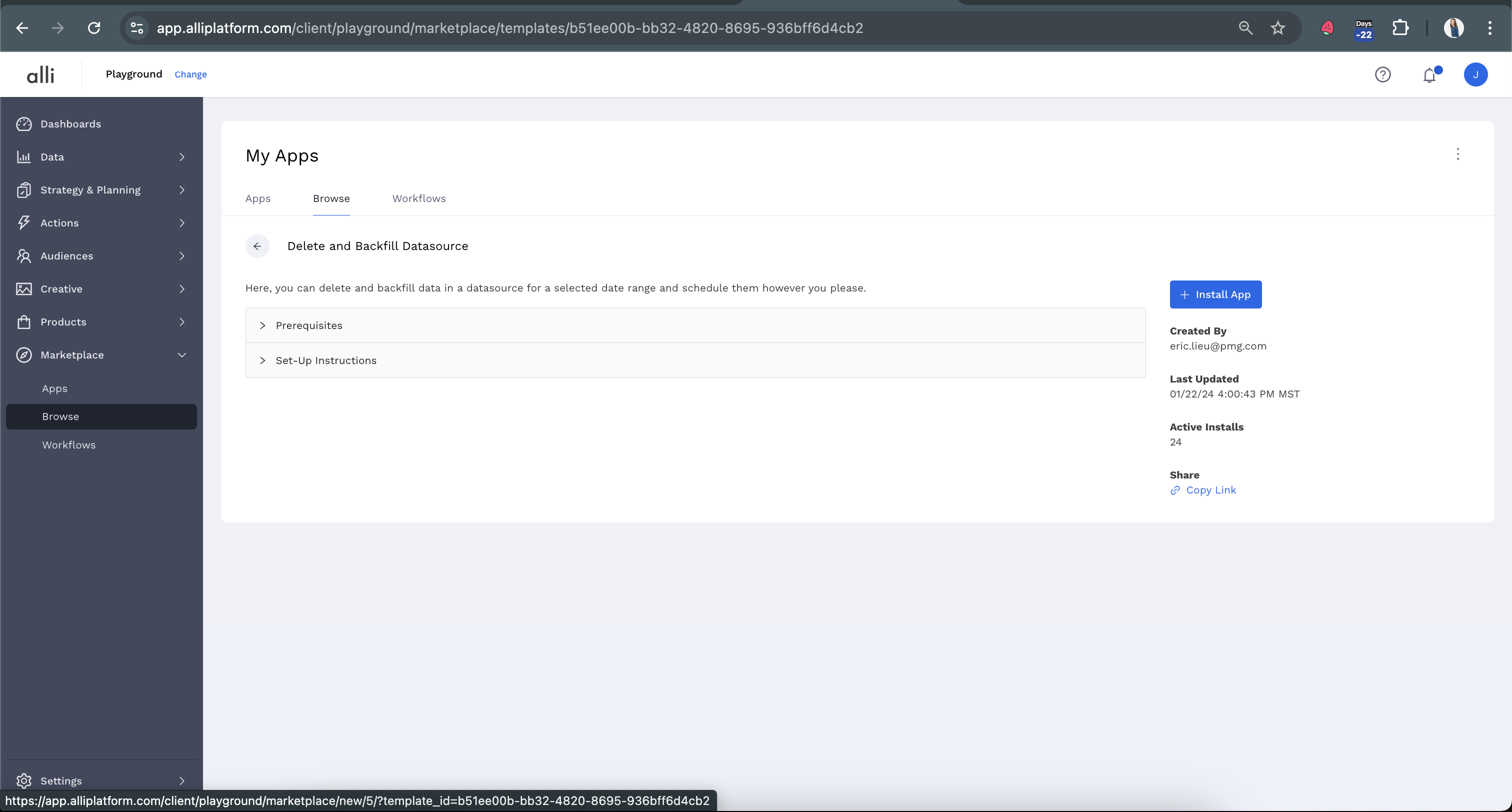
Select any templates to see a description, when it was last updated, how many active installs it has across Marketplace, as well as any prerequisites or set-up instructions.
-
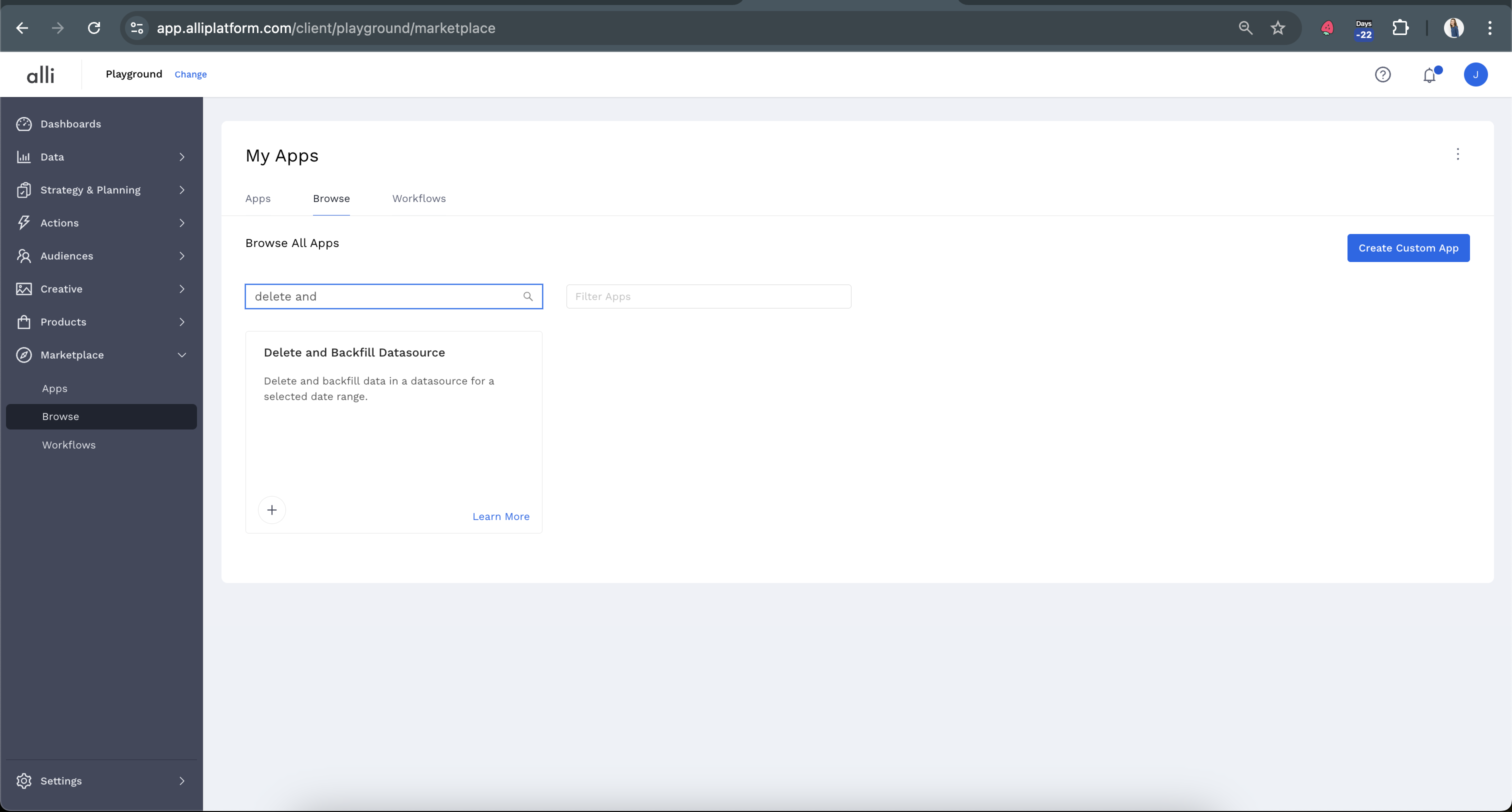
Search for “delete and backfill datasource” and click the plus button on the app template.
-
Click on “Install App”
-
Add in your datasource id and the date range
When scheduled, it will update based on the designated date range, starting from the moment the scheduled run is activated. For instance, if you configure it to cover the previous week and set it to run on a weekly basis, it will consistently process data for the seven days leading up to its scheduled runtime
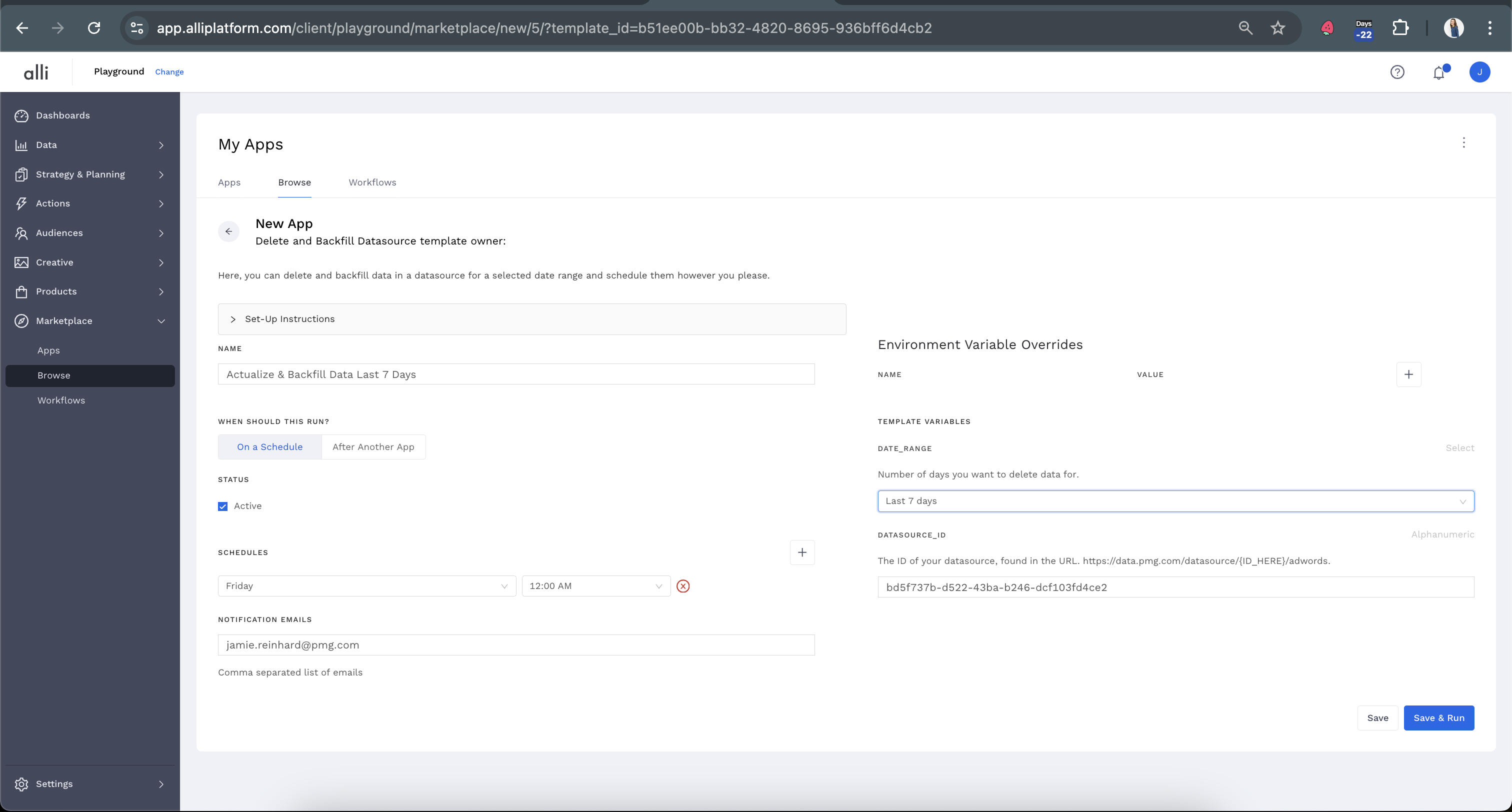
-
Once you have completed your inputs, you can either
SaveorSave and Runyour app.Save and Runwill kick off an immediate execution of the app, and you can QA the app while it is running, or after it is completed using the instructions found in How-To: QA your app, orSavewill save your inputs, and your app will run at the next scheduled time you set up in your schedule.
When scheduled, it will update based on the designated date range, starting from the moment the scheduled run is activated. For instance, if you configure it to cover the previous week and set it to run on a weekly basis, it will consistently process data for the seven days leading up to its scheduled runtime.
Related articles
- How-To: Connect your Google Sheet to Actions
- How-To: Disable or Remove an Installed App
- How-To: Set Up a New Workflow
- How-To: Pull Data for TikTok Trends
- How-To: View Error Messages on an Action That Ran
- How-To: Filter Alli Data Reports by Date to Power Actions - Tips & Tricks
- How-To: Understanding Version Statuses
- How-To: Create a Scheduled Version
- How-To: Weather API App
- How-To: Set Up Brand Media Pacing Datastudio Dashboard
- Tutorial: Adding Negative Keywords to Google Ads
- How-To: Test Your Action
- How-To: Using the Execution Log
- How-To: Setup Weather Budget Adjuster
- Tutorial: TheTradeDesk - Brand Safety Alerts