
Why should you use this?
Search query reports are difficult to manage, cumbersome to work with, and easy to forget. The SQR Automation tool automates the creation of search term reports, allowing your SEM team to quickly review and action on search ad performance. Optionally, the SQR tool will send a reminder message in a Slack channel you choose, linking directly to a Google Sheet containing your data.
Key Features
-
Thresholds: Define performance criteria for search terms to focus your reports on the most relevant data.
-
Setup: Include or exclude specific campaigns and ad groups for customized reporting.
-
Slack Integration: Get reminders sent to your chosen Slack channel for seamless updates.
After reviewing the consolidated data, use the “Add” and “Negate” sheets to automatically push positive and negative keyword changes directly to the platform.
Overview of Documentation
-
Submitting a ticket to Alli Service Desk…
-
Setting up your Google Sheet
-
Creating a workflow
-
Slack logic (success + conditional error file)
-
Interactive Arcade Demo – Setting up the Workflow
-
Why use this workflow?
-
Trouble Shooting
Installation and Setup
Full setup requires developer access to the Google Ads Account. This requires an ASD Ticket. Which can be made here:
https://agencypmg.atlassian.net/servicedesk/customer/portal/1/group/3/create/12
1. Setup your Google Sheet
Step 1a. Make a copy of the template
Make a copy of the Alli SQR Automation – TEMPLATE Google Sheet and check the box to “Share it with the same people.”
Then, share the new sheet with the Workflows Service Account with edit access.
Step 1b. (Optional) Configure the SETUP tab
The SETUP tab defines which campaigns and ad groups to include or exclude when pulling data. The app pull all available data when it is run if these tabs are not filled out.
|
Column |
Description |
|---|---|
|
Action |
Indicates whether to Include or Exclude the campaign or ad group that’s matched. |
|
Match Group |
Indicates whether to look for matching Campaigns or Ad groups |
|
Filter |
Indicates which values the Match Group should contain |
Click the dropdown below for an example.
For example...
A sheet that is setup like this:
|
Action |
Match Group |
Filter |
|
Include |
Campaign Name |
_br,test |
|
Exclude |
Campaign Name |
_travel |
will pull all Campaigns that include “_br” AND “test” in the name, but don’t include “_travel”.
In this case, a campaign named
test_campaign_br_x_x_24
will be included in data that’s pulled, but campaigns named
test_campaign_br_travel_x_24
or
live_campaign_br_x_x_24
will not be included.
Step 1c. (Optional) Configure the THRESHOLDS tab
The THRESHOLDS tab defines filtering logic for metrics.
|
Column |
Description |
|---|---|
|
Metric |
Which metric to compare (Impressions, CTR, Cost, etc.). |
|
Condition |
Type of comparison ( |
|
Value |
Threshold value used for filtering. |
This is best demonstrated with an example:
Step 1d. (Required) Copy the Sheet ID
Before moving on, copy the ID of the sheet you setup. This is displayed in the URL between /spreadsheets/d/ and /edit/. For example, this is the TEMPLATE sheet’s ID:

Now lets start creating our Workflow
-
Head to the Alli home page https://app.alliplatform.com/client/playground/home
-
Click on the Actions Tab
-
Click on Workflows
-
Click on New Workflow
Workflow Tasks to create sequentially:
-
Use the {SQR Automation} Template(*link this)
-
Use the Slack - Send Message Conditionally template and create 2 separate nodes connected from the SQR node on ‘success’
-
Name one node to ‘Error File Exists’
-
Set the message to ‘Errors occurred while updating keywords. Check the google sheet: <{google_sheet_url} Sheet>’
-
Set the condition to ‘File(s) Exist’
-
Set the File Name and Folder to what you listed in the SQR Node
-
note: if you did not specify a folder in the sqr node, you can leave the folder field empty.
-
-
Set the Upload Files to Slack' to Yes
-
-
Name the other node to ‘Error File Does not Exist’
-
Set the message to ‘SQR Data fetched successfully. Check the google sheet: <{google_sheet_url} Sheet>’
-
Set the condition ‘File(s) Don’t Exist'
-
Set Upload Files to Slack' to No
-
-
Tip: Your must add the Alli - Workflows bot to your channel
-
Either:
/invite @Alli - Workflows -
Or: Channel Settings → Integrations → Add Apps → Alli - Workflows
-
the ‘SLACK_SOURCE_FILE_NAME’ MUST match the Output File Name in Youtube Task.
Other Helpful Information Regarding Google Sheets..
Create + reorder columns
Since this runs out of a Google Sheet, feel free to create new columns to take notes or reorder the columns. In the Add and Negate tabs, columns with grey headers will be ignored. You can use this to draft changes that won’t be pushed, or to take notes for others to see.

Filter + sort data
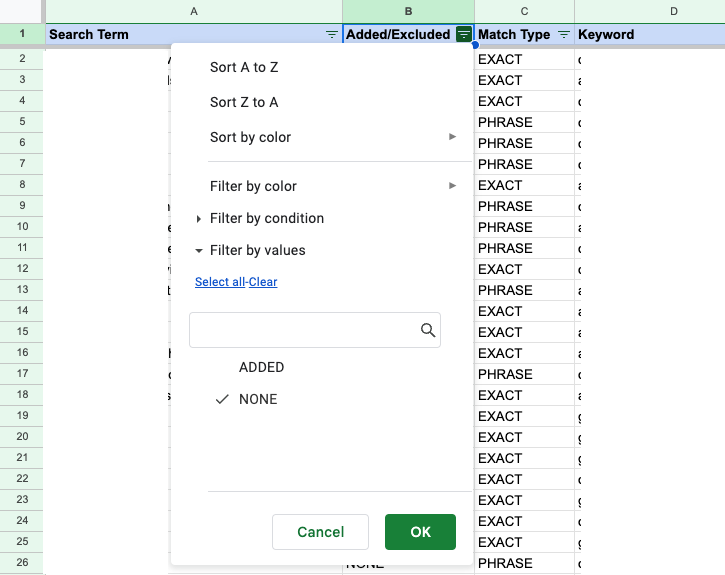
Data that has been pulled into the sheet can be sorted and filtered using Sheet’s built-in functionality.
For example, to filter for only search terms that aren’t already being added or excluded you can use the filter for the Added/Excluded column:
Troubleshooting
General - Google Ads Permission Errors
The way we pull data from Google Ads requires an Account ID and a Parent Account ID. If these are misconfigured, this can sometimes cause permission issues. Double check these values to make sure they are correct.
For some clients, the Account ID and the Parent Account ID should be the same value. If you’re running into this error and you’re unsure if this could be the cause, try setting both of the values to the value you’re using for the Account ID.
Data Push - Misconfigured Data Error
The app can only push to Campaigns, Ad Groups, or Negative Keyword Lists that already exist in platform. If some keywords cannot be pushed, make sure the destination is accurate.
Getting Help
If all else fails, submit a ticket to the help desk or send a message in #alli-search-automation