
Overview
Once you have set up an app for your customer, you will want to ensure it is running and working as expected. This article walks you through how to audit an app.
Instructions
-
From the left-hand side navigation, select Marketplace. This will show all of the custom apps that are currently set up for the selected customer.
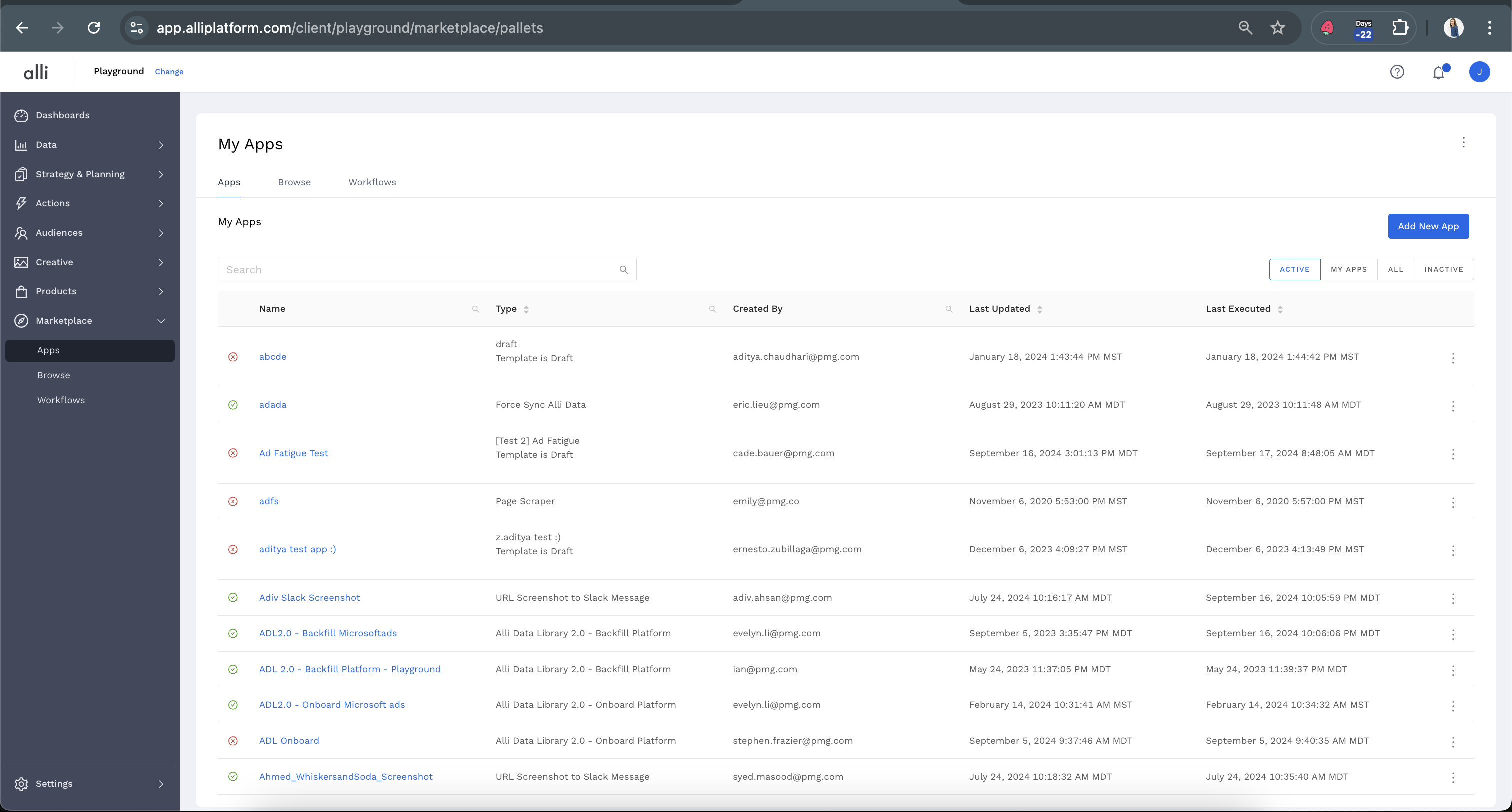
-
Using the search bar, find the app you would like to QA. From the right-hand side of the App name, under the three dots, choose Executions. Or you can simply click on the name of the app.
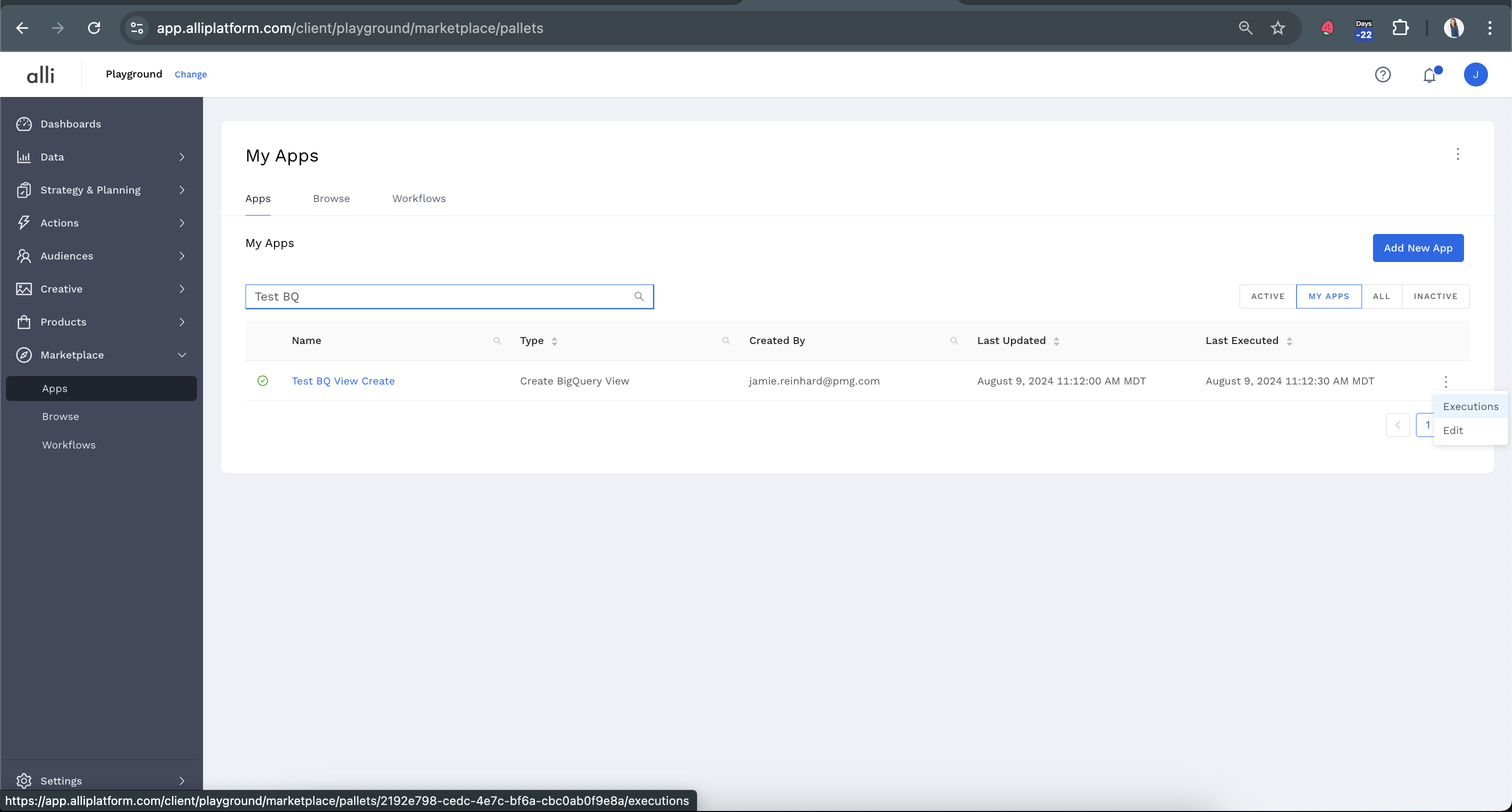
-
This page will show Last Run dates and times to verify and QA.
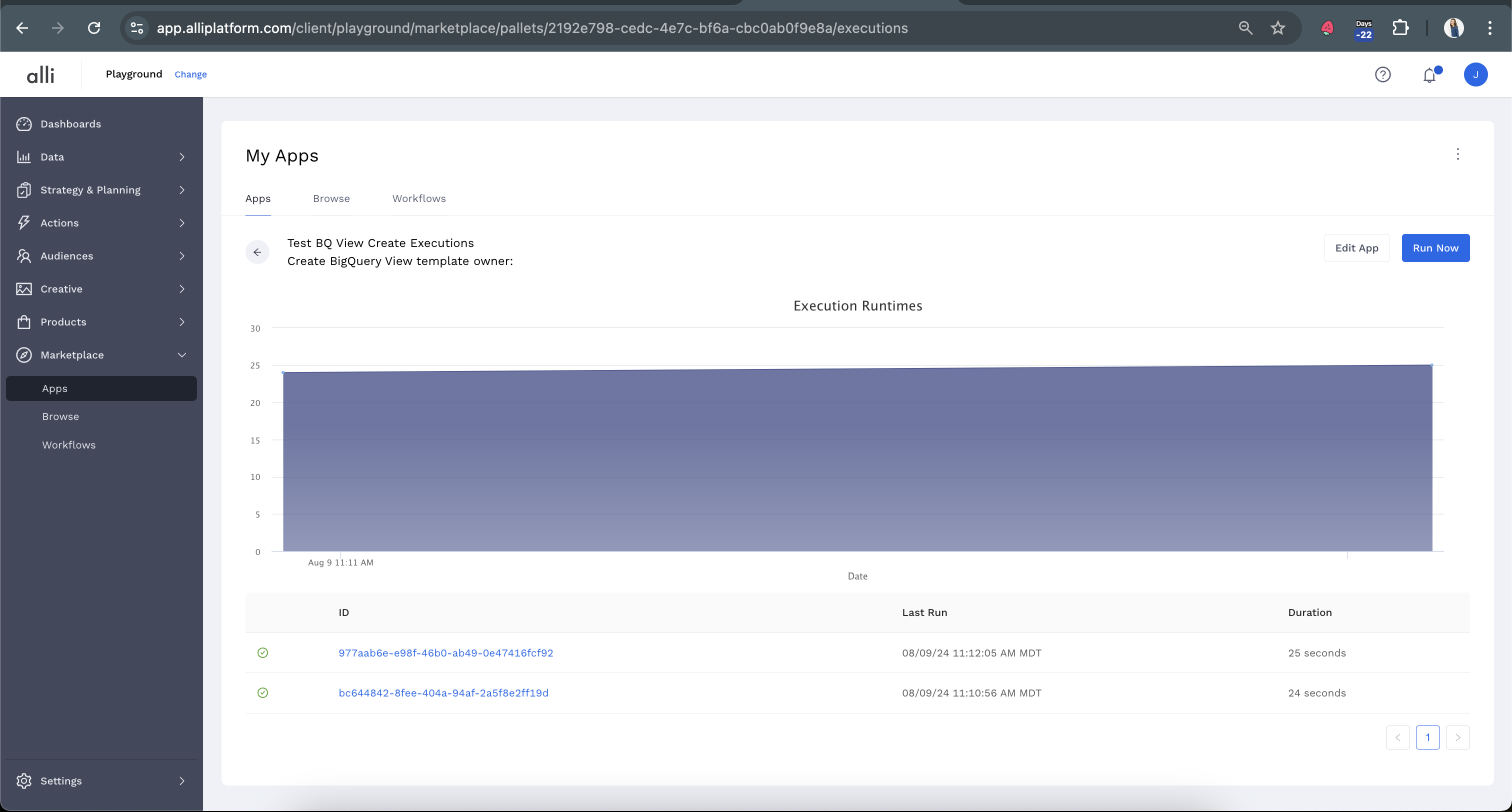
-
Click on the execution (blue link) you would like to QA.
-
The
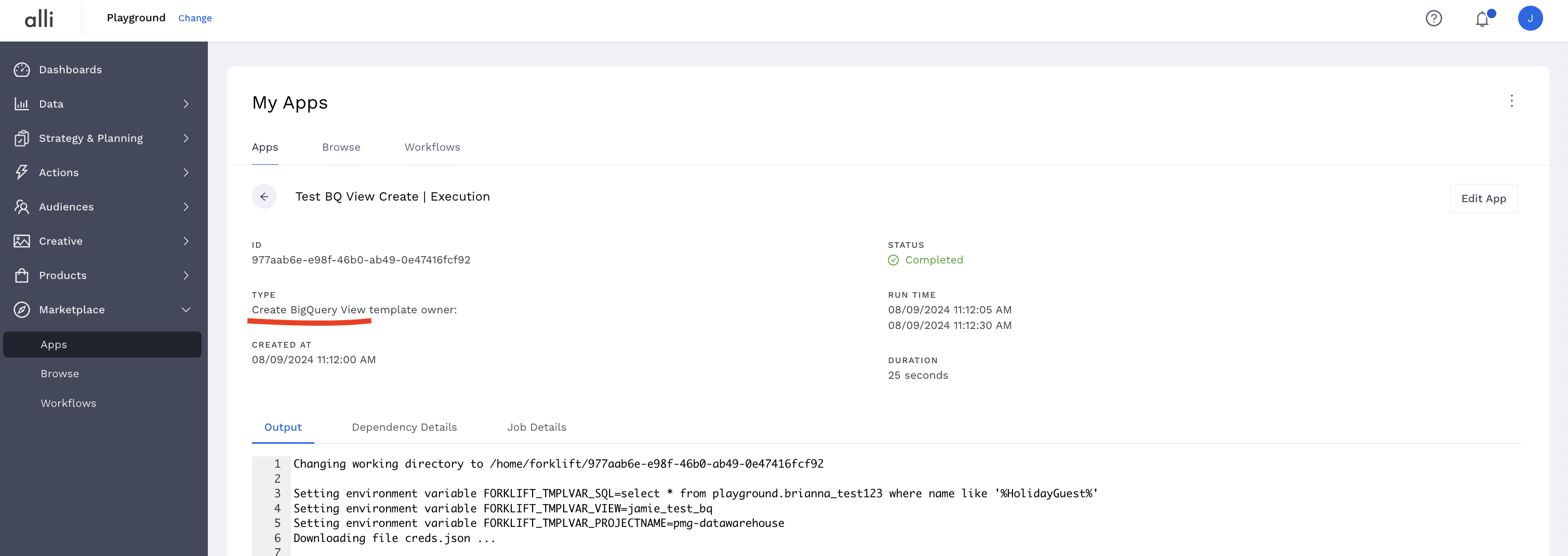
Outputtab will typically contain any error information, or troubleshooting information printed out by the technical team that manages the template you are using.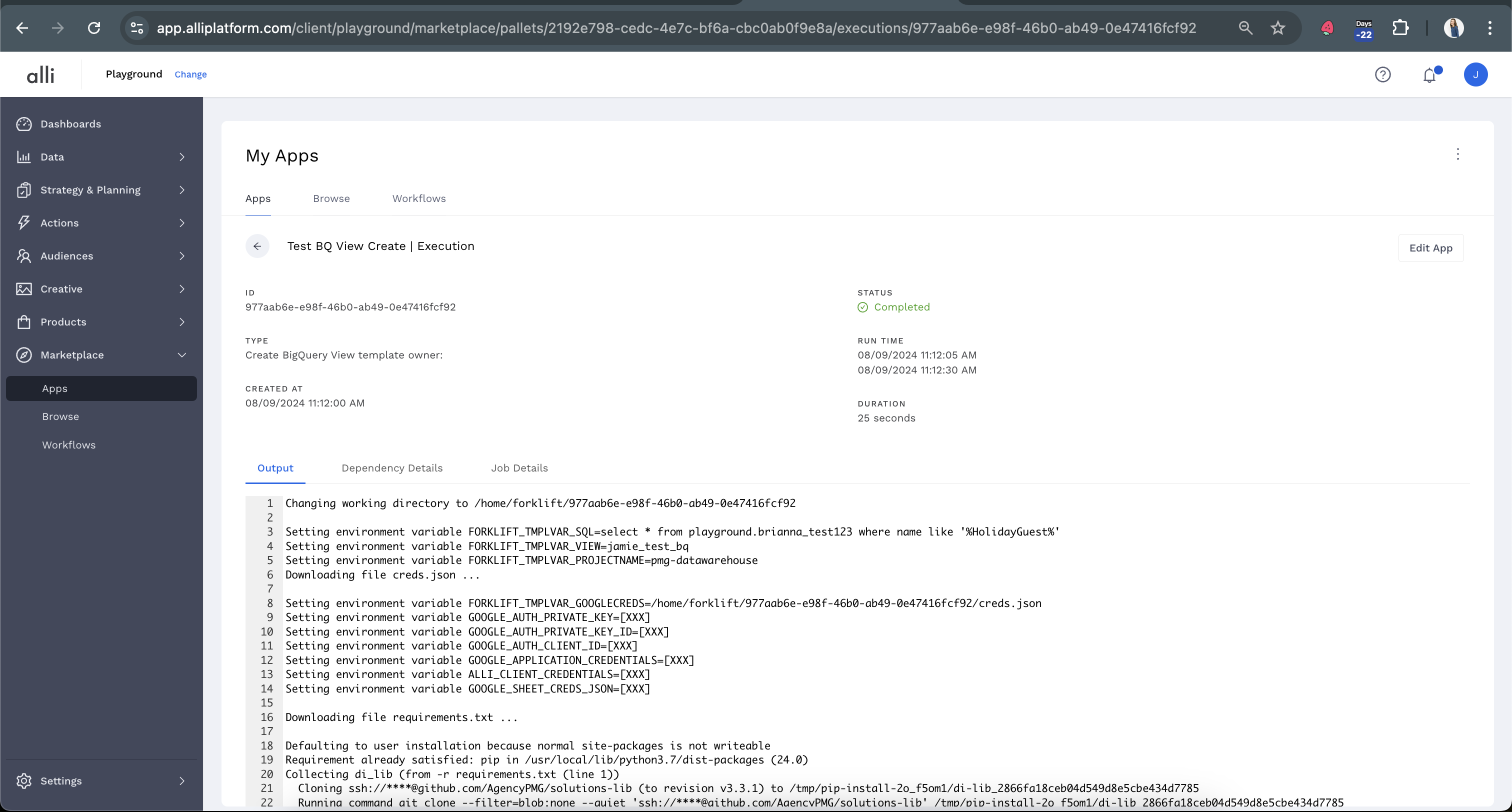
-
If you are unable to find specific error information, or need help troubleshooting, you should input a ticket Getting Support and include
-
a link to the execution
-
specific reference to the template name, which can be found on the execution page
-
links or details for any information you provided in the app (like google sheets, datasources, etc)
-
Related articles
- How-To: Connect your Google Sheet to Actions
- How-To: Disable or Remove an Installed App
- How-To: Set Up a New Workflow
- How-To: Pull Data for TikTok Trends
- How-To: View Error Messages on an Action That Ran
- How-To: Filter Alli Data Reports by Date to Power Actions - Tips & Tricks
- How-To: Understanding Version Statuses
- How-To: Create a Scheduled Version
- How-To: Weather API App
- How-To: Set Up Brand Media Pacing Datastudio Dashboard
- Tutorial: Adding Negative Keywords to Google Ads
- How-To: Test Your Action
- How-To: Using the Execution Log
- How-To: Setup Weather Budget Adjuster
- Tutorial: TheTradeDesk - Brand Safety Alerts