
Having issues? Check our troubleshooting guide:
RSA Tool User Guide: Best Practices & Common Issues
Documentation for matching logic for better understanding of inclusion/exclusions.
his article provides info on how to onboard to the new Alli RSAs workflow for both Google and Bing RSAs
-
Copy this sheet: https://docs.google.com/spreadsheets/d/1qTfL2-qPnuc5gP5TD8fdeISmkFPScmhSvFFQlT2RbKQ/edit?usp=sharing . Do not edit the original, choose File-> Make a copy and edit the copy.
-
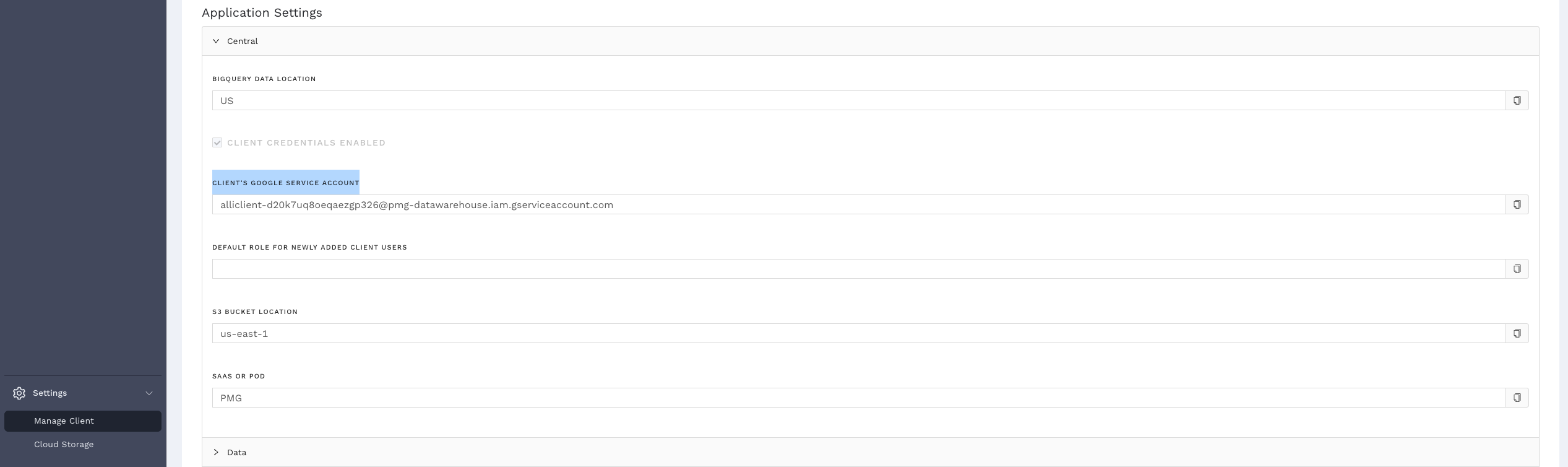
While making a copy, be sure to check the “Share with the same people” checkbox. Also ensure to share with your client’s Google Service Account. You can find this in your client’s settings page on Alli.
-
Once you’ve made a copy of the sheet, you can start editing the sheet with your inclusion/exclusion and RSA details. For more details refer to matching logic documentation.
-
Go to HQ page, select the engine (Bing vs. Google) and enter your account ID.
Finding Your Account ID:
For Bing:
• Login to Microsoft Ads
• Go to Settings > Account Settings
• Use the "Account ID" field (numeric only, e.g., 150314605)
• DO NOT use "Account number" (e.g., F119KK38) - this won't workAlternative method:
• Copy the URL when viewing your account
• Find the parameter AID="150314605" in the URL
• Use that numeric valueFor Google:
• Login to Google Ads
• The Account ID appears below your account name (format: XXX-XXX-XXXX)
• Use the full ID including hyphens, or remove them
• Example: 123-456-7890 or 1234567890 (both work) -
Copy the Google Sheet ID, which is the long string of characters between /d/ and /edit in the sheet URL. Example: https://docs.google.com/spreadsheets/d/1AbCdEfGhIjKlMnOpQrStUvWxYz/edit
→ Sheet ID = 1AbCdEfGhIjKlMnOpQrStUvWxYz
You’ll need this ID later when setting up the workflow.
You will need to share the Google Sheet with the Alli client’s Google Service Account email.
You can find the Alli client’s Google Service Account under Manage Client → Settings in Alli.
Step 2: Setting up the Workflow Task
-
Go to http://marketplace.alliplatform.com and choose your client from the top left.
-
Search for RSA 2.0 and click Install.
-
These are the variables that you would need to fill:
-
notification_emails: Email Id of the person/people to whom the notification emails should be sent. This would notify the successful or failed execution of the task.
-
hq_sheet_name: Leave this blank if you’re using Google Sheets. If you’re using smartsheets, enter the name of your HQ sheet here.
-
hq_sheet_id: The sheet ID of your Google sheet that you created in the first step.
-
hq_tab_name: The tab name in your Google Sheet that contains account and mapping details. this will most likely be “HQ”
-
slack_channel_for_bulk_upload_file: The slack channel to which your RSA bulk upload sheet should be sent to.
-
slack_channel_for_errors: The slack channel to which your workflow task errors should be sent to.
-
people_to_at: The people who you want to be tagged when an RSA sheet is sent to slack.
-
communication_type: Whether you want to receive the bulk sheet through slack, or email, or both.
-
email_recipients: If your communication type is email or both, fill in the email IDs of the people to whom the bulk sheet should be sent.
-
output_type: output_type: You can choose between “Submit Live” which would submit the RSAs to Google with a “PAUSED” ad status, or “Download bulk upload sheet” which would generate a bulk upload sheet and send on slack. You can later manually QA the bulk upload sheet and upload it to Google. Please note: the bulk uploads option will send a notification to slack with the processed CSV, users can choose to do it this way and upload this CSV to bing/google ads manually with the added ability to QA before submission, or choose submit live, which will still send that CSV to designated Slack Channel, and then proceed to submit the RSAs to the platform automatically. Alli can handle that from start to finish
-
Login customer id: Google/Bing login customer id (Manager level MCC ID)
-
Match All Identifier : Match All Identifier
The value which can be used to in either the Account Inclusions or Camp / Adgrp Inclusions columns to signify you would like to match to all possible options. defaults to All.
-
Ad Status : he status for newly created RSAs. Choose:
• "ENABLED" - New RSAs will be active and can serve immediately
• "PAUSED" - New RSAs will be created but paused (recommended for first run to QA before going live)
-
-
Please be aware, the workflow will only run 1 engine at a time. Do not attempt to run too frequently. it is always advised to wait a few minutes to run the next attempt.
-
This does NOT change the status of existing RSAs, only new ones.
Recommended: Use "PAUSED" for your first run to review RSAs before they go live.