Overview
Running a workflow with a specific parameter lets you override certain tasks. When a task is overridden, its logic is skipped and the workflow moves directly to the next task.
Prerequisites
-
Basic understanding of JSON.
-
Familiarity with workflows and tasks in the application.
-
Familiarity with running a workflow with parameters.
Steps
-
Access a Workflow
-
Go to the Workflows page.
-
Click the workflow you want to run with parameter overrides.
-
Open Parameter Overrides
-
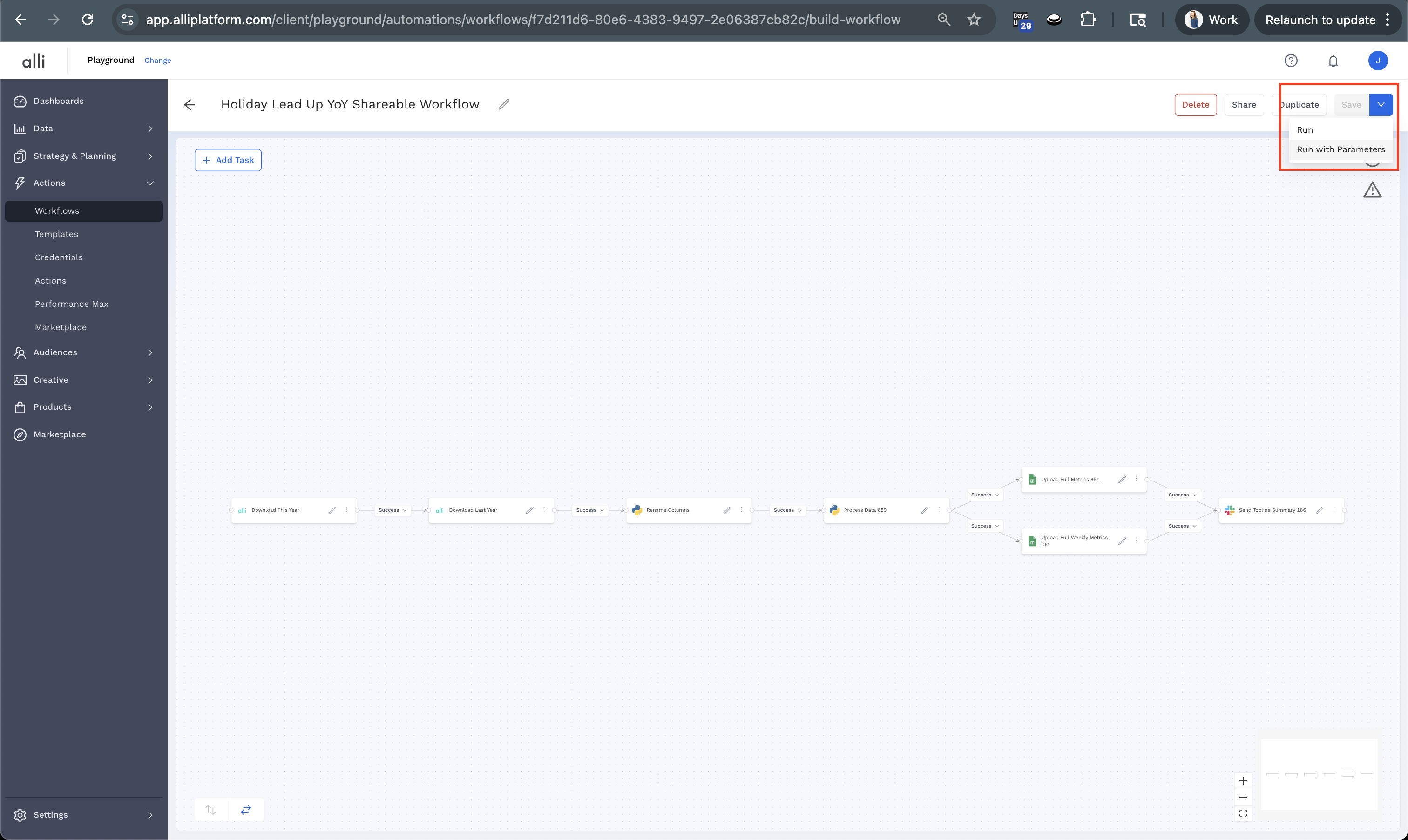
Click the parameters icon, shown as {...}, to open the Parameter Overrides modal.
-
Provide Parameter Overrides
-
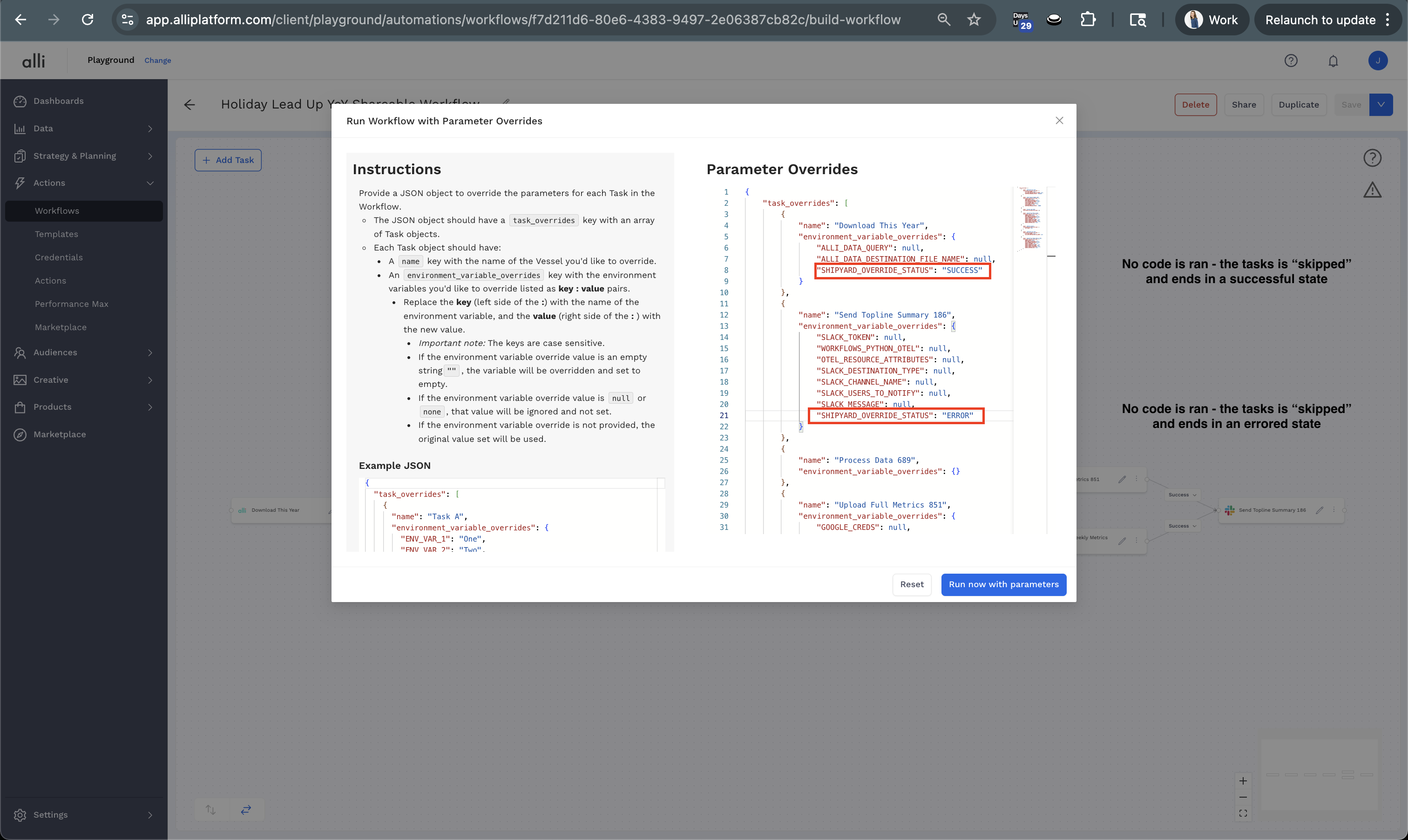
In the Parameter Overrides section, you will see a task_overrides JSON structure that is generated from the tasks in your workflow.
-
The JSON includes:
-
A task_overrides key with an array of task objects.
-
Each task object includes:
-
A name field with the task name.
-
An environment_variable_overrides field with key value pairs for variables inside that task.
-
You can edit the JSON directly. The editor will show syntax errors as you type.
To skip or override a task, add the variable SHIPYARD_OVERRIDE_STATUS to that task.
To skip the task and continue along a successful path with Exit Code 0, use either value:
"SHIPYARD_OVERRIDE_STATUS": "SUCCESS"
"SHIPYARD_OVERRIDE_STATUS": "SUCCESSFUL"
To skip the task and continue along an error path with Exit Code 1, use either value:
"SHIPYARD_OVERRIDE_STATUS": "ERROR"
"SHIPYARD_OVERRIDE_STATUS": "ERRORED"
-
Check the Logs
-
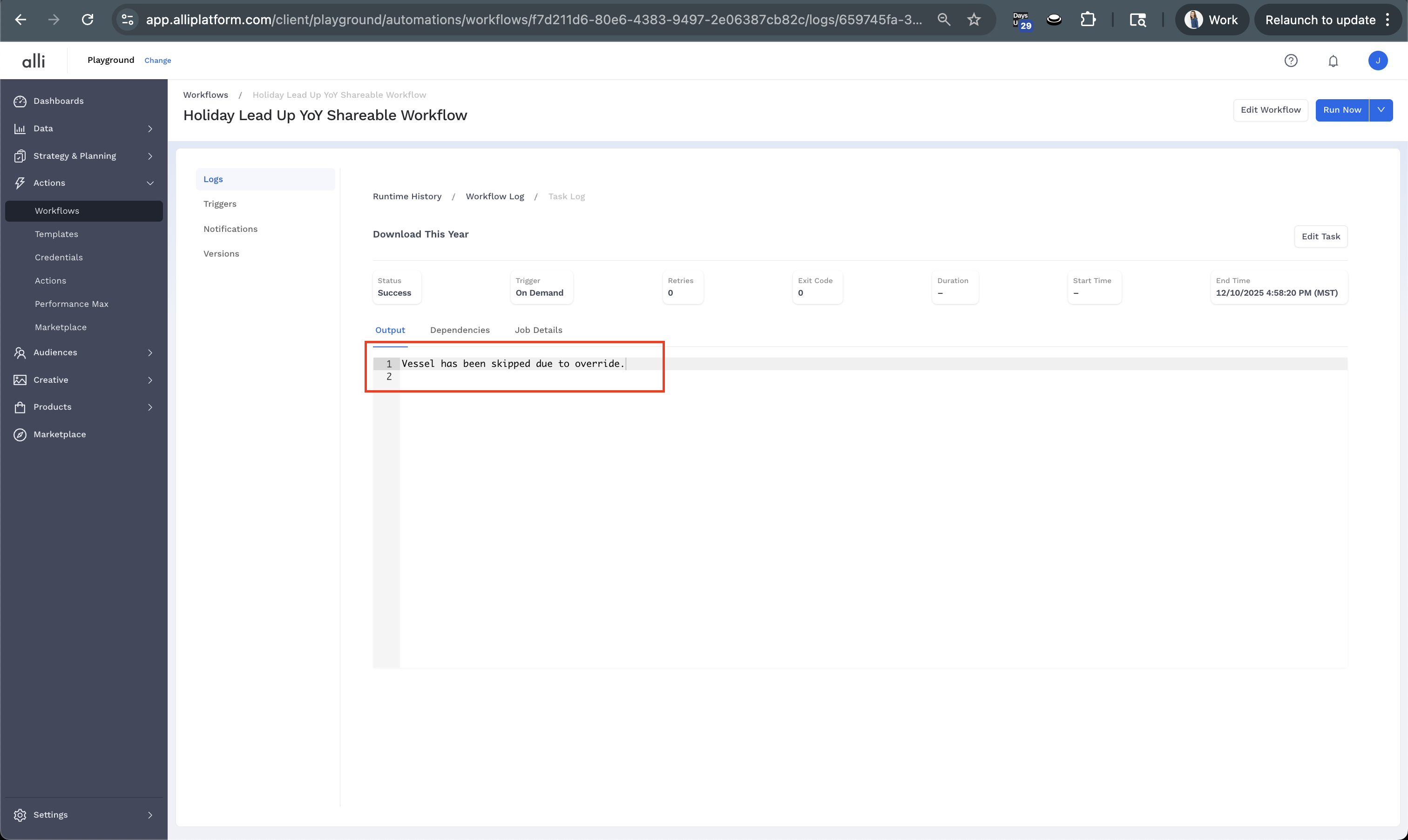
If a task was skipped because SHIPYARD_OVERRIDE_STATUS was set, the task will show a status of Success and no billable runtime.
-
The skipped task will not appear in the graph. Last Run, Retries, Billable Runtime, and Duration will remain unset.
-
You can still click into the logs for that task. The log will show:
"Vessel has been skipped due to override."