
So you want to automate URL exclusions for Microsoft Ads?
Overview of Documentation:
Creating a Workflow
Microsoft Ads - Negate Domains
Use the Microsoft Ads Negate Domains
Why use Microsoft Ads Negate Domains
Purpose-built for Placement Optimization: This workflow automates the process of identifying and excluding underperforming publisher URLs from Microsoft Ads campaigns. If your campaigns are serving on low-quality placements that consume budget without delivering results, this automation is the most efficient way to protect your media spend.
When to use it:
-
Your Microsoft Ads campaigns are serving on the Audience Network or partner sites
-
You're seeing high impressions/spend but low clicks/conversions on certain placements
-
You want to automate recurring URL exclusion analysis instead of manually reviewing publisher reports
-
You need to apply exclusions across multiple campaigns consistently
-
You want to maintain a whitelist of protected domains (e.g., search properties, trusted publishers)
Key benefits:
-
Automation: Eliminates the manual process of downloading publisher reports, analyzing performance, and applying exclusions campaign-by-campaign
-
Data-Driven: Uses your custom performance thresholds to identify underperforming URLs objectively
-
Consistency: Applies exclusions across all active Search, Shopping, and Dynamic Search Ads campaigns simultaneously
-
Protection: Whitelist functionality prevents accidental exclusion of critical domains
-
Timeliness: Daily runs ensure new underperforming URLs are caught quickly before wasting significant budget
Understanding Run Types
The workflow has two run modes: Historical and Daily. Understanding when to use each is critical for successful setup.
Historical Run
When to use:
-
✅ First time running the workflow
-
✅ After a previous run failed
-
✅ When you want to reset and re-analyze all historical data
What it does:
-
Analyzes performance data from the last 90 days (configurable)
-
Ignores any existing exclusions already applied to campaigns
-
Creates a "clean slate" exclusion list based purely on performance thresholds
-
Note: This will fetch ALL underperforming URLs, even if they're already excluded
Expected behavior on first run:
-
The workflow will create a datasource named
microsoft_publisher_performance -
The workflow will exit with an error indicating the datasource needs authentication
-
This is expected! It's a one-time setup requirement
Daily Run
When to use:
-
✅ After your first successful Historical run
-
✅ For all scheduled/recurring runs
What it does:
-
Only analyzes URLs that are not already excluded on campaigns
-
Performs incremental updates (adds new underperforming URLs without re-processing old ones)
-
More efficient and faster than Historical runs
Important: Do not use Daily mode until you've completed at least one successful Historical run.
Step-by-Step Setup Guide
Instructions for finding the microsoft ads account id in platform
-
Microsoft Ads Account ID
-
This must be a numeric ID with no letters or special characters.
-
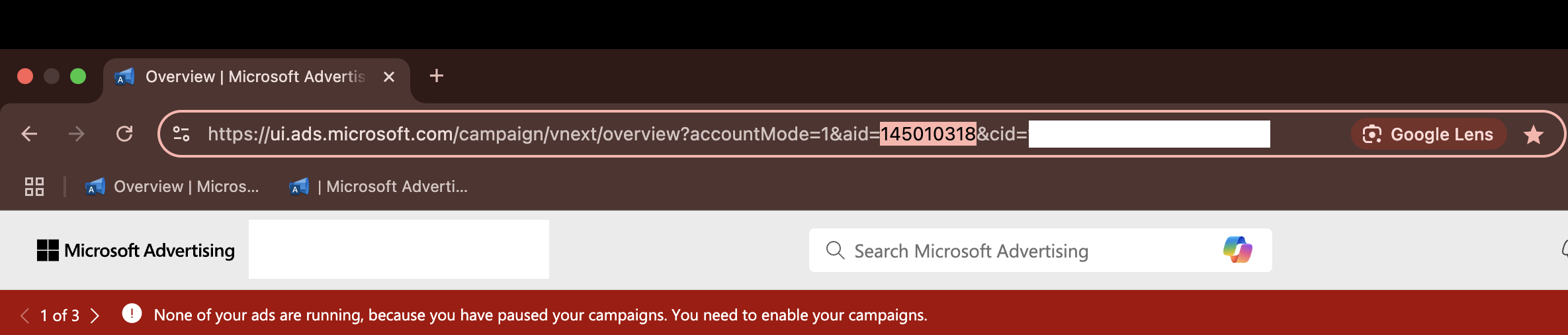
To find it, log in to Microsoft Ads, and look at the URL in your browser.
-
Look for the parameter
aid=XXXXXX— this number is your Account ID. -
-
⚠️ Do not use the Account ID shown in the UI — use the one from the URL (Refer to the image).
-
Step 1: Create the Workflow
-
Go to Alli Platform → Actions → Workflows
-
Click Create Workflow
-
Select template: Alli Solutions - Microsoft URL Negation V2
Step 2: Fill in Required Inputs
Pay special attention to the thresholds field.
Threshold Requirements:
-
You must provide at least two thresholds
-
At least one "upper bound" (impressions OR spend)
-
At least one "lower bound" (clicks OR conversions)
Example valid combinations:
-
✅ Impressions + Clicks
-
✅ Spend + Conversions
-
✅ Impressions + Spend + Clicks + Conversions
-
❌ Only Clicks + Conversions (missing upper bound)
Step 3: First Run (Expected to Fail)
-
Click Save and Run
-
The workflow will:
-
Create the
microsoft_publisher_performancedatasource -
Exit with an error:
DataSourceNotSetup
-
This is expected! Proceed to Step 4.
Step 4: Authenticate the Datasource
-
Go to Alli Data → Search for
microsoft_publisher_performance -
Click on the datasource to open it
Configure the datasource:
a. Required Authorizations tab:
-
Click Authorize and complete the Microsoft Ads OAuth flow
b. Additional Configurations tab:
-
Under Account Name, select your Microsoft Ads account from the dropdown
c. Define Your Data tab:
-
Metrics: Select the following (required):
-
✅ Impressions
-
✅ Clicks
-
✅ Spend
-
✅ Conversions
-
-
Dimensions: Ensure
Goalis selected
d. Load Your Data tab:
-
Set Backfill Date to cover the last 90 days (recommended for statistical significance)
-
Click Save on the datasource
Step 5: Re-run the Workflow
-
Return to your workflow
-
Click Run again (with the same inputs from Step 2)
-
The workflow should now complete successfully
Success indicators:
-
✅ Workflow status shows "Completed"
-
✅ Output shows number of URLs excluded
-
✅ No error messages in logs
Step 6: Switch to Daily Mode
-
Edit your workflow
-
Change
run_typefromhistoricaltodaily -
Save the workflow
-
Set up a schedule (recommended: daily at 9 AM)
You're done! The workflow will now run daily and automatically exclude new underperforming URLs.
Important Caveats
1. Campaign-Level Exclusions
Exclusions are applied at the campaign level, not account level.
Impact: If you launch a new campaign after the workflow runs, exclusions will not automatically apply to it. You must:
-
Run the workflow again manually, OR
-
Wait for the next scheduled run
2. Datasource Naming
The workflow requires a datasource named exactly microsoft_publisher_performance.
Impact: If you have a similar datasource with a different name, the workflow will create a new one and ignore your existing datasource - which okay.
Troubleshooting
Need more help?
-
Take a screenshot of the error/output
-
Note the Microsoft Ads Account ID used
-
Open a Jira ticket in Alli Service Desk:
-
Feature: Workflows
-
Title:
[Client Name] Microsoft URL Negation V2 Issue -
Description: Include client name, account ID, workflow link, and error screenshot
-
-
If no response within 48 hours, escalate to
#alli-search-automationSlack channel