
Here’s a step-by-step of how to pull detailed mobile app performance data for Liftoff.
This set-up process has 3 main steps:
-
Creating an API connection app that will load the report into Alli Cloud Storage
-
Creating an Alli Cloud Storage datasource that grabs your report file
-
Creating a Force Sync app that refreshes the datasource each day (the automated equivalent of pressing the “Load Data” button)
To get started, you will need the Liftoff API Key and API Secret (contact your onboarding team or the PMG team member managing the account).
1. Create Liftoff Marketplace App
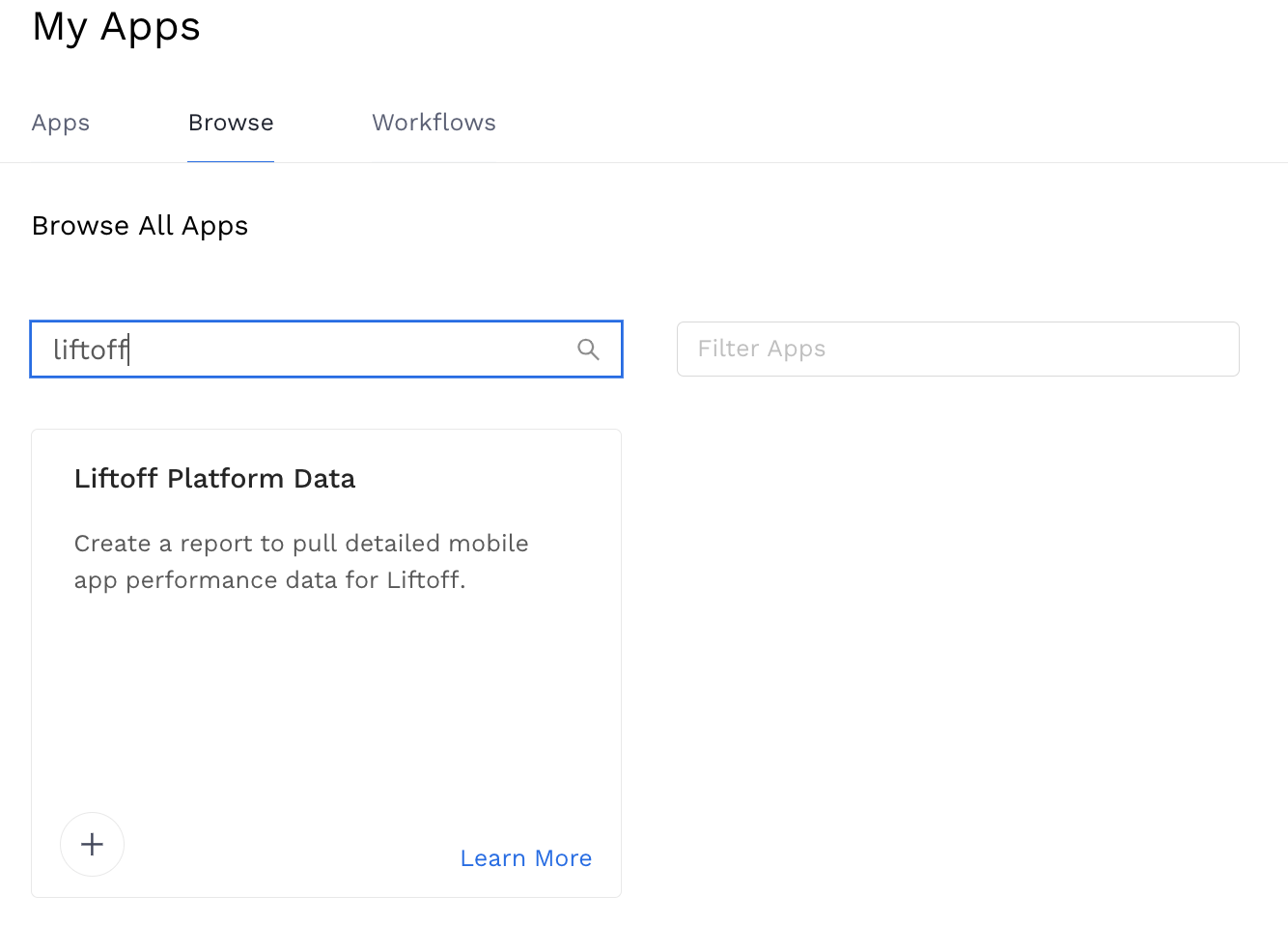
Go to Marketplace Apps, Add a New App, Create a New “Liftoff Platform Data” App.
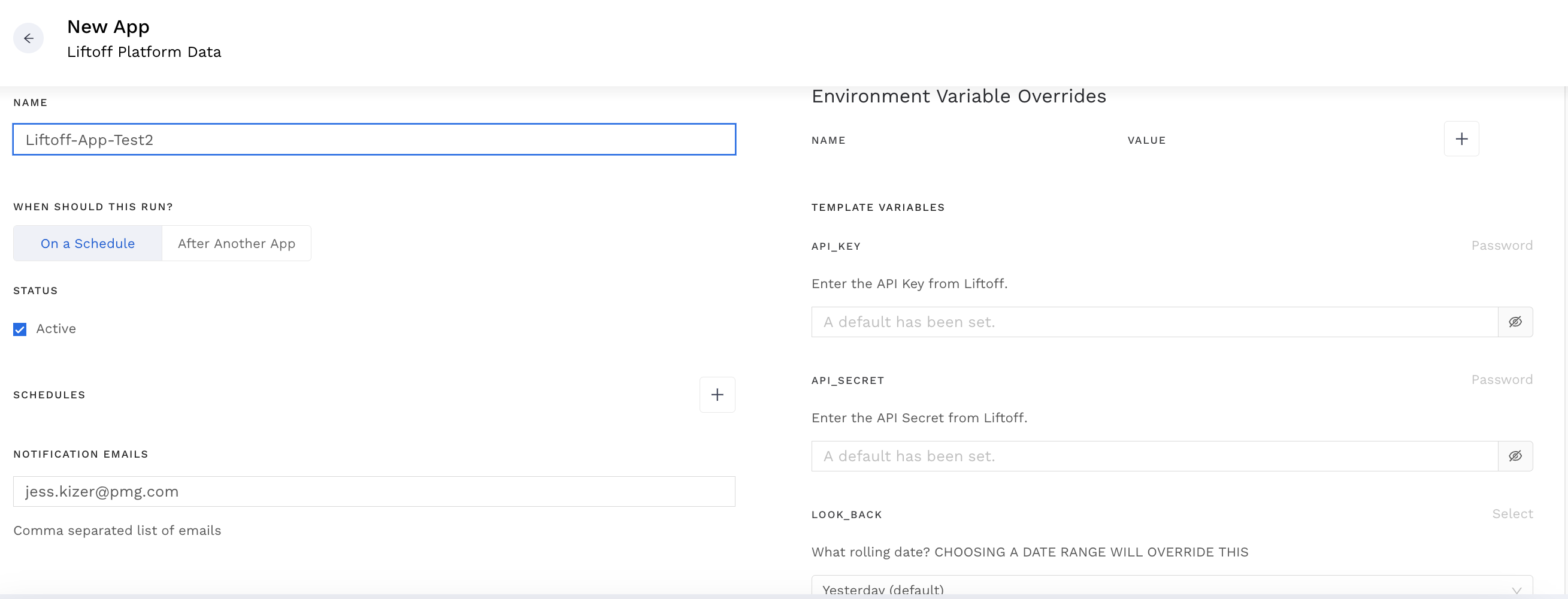
Next, input values for the API Key, API Secret, and Date range you wish to pull.
NOTE: the maximum allowable difference between the start and end range can only be 7 days. Otherwise the report will throw an error.
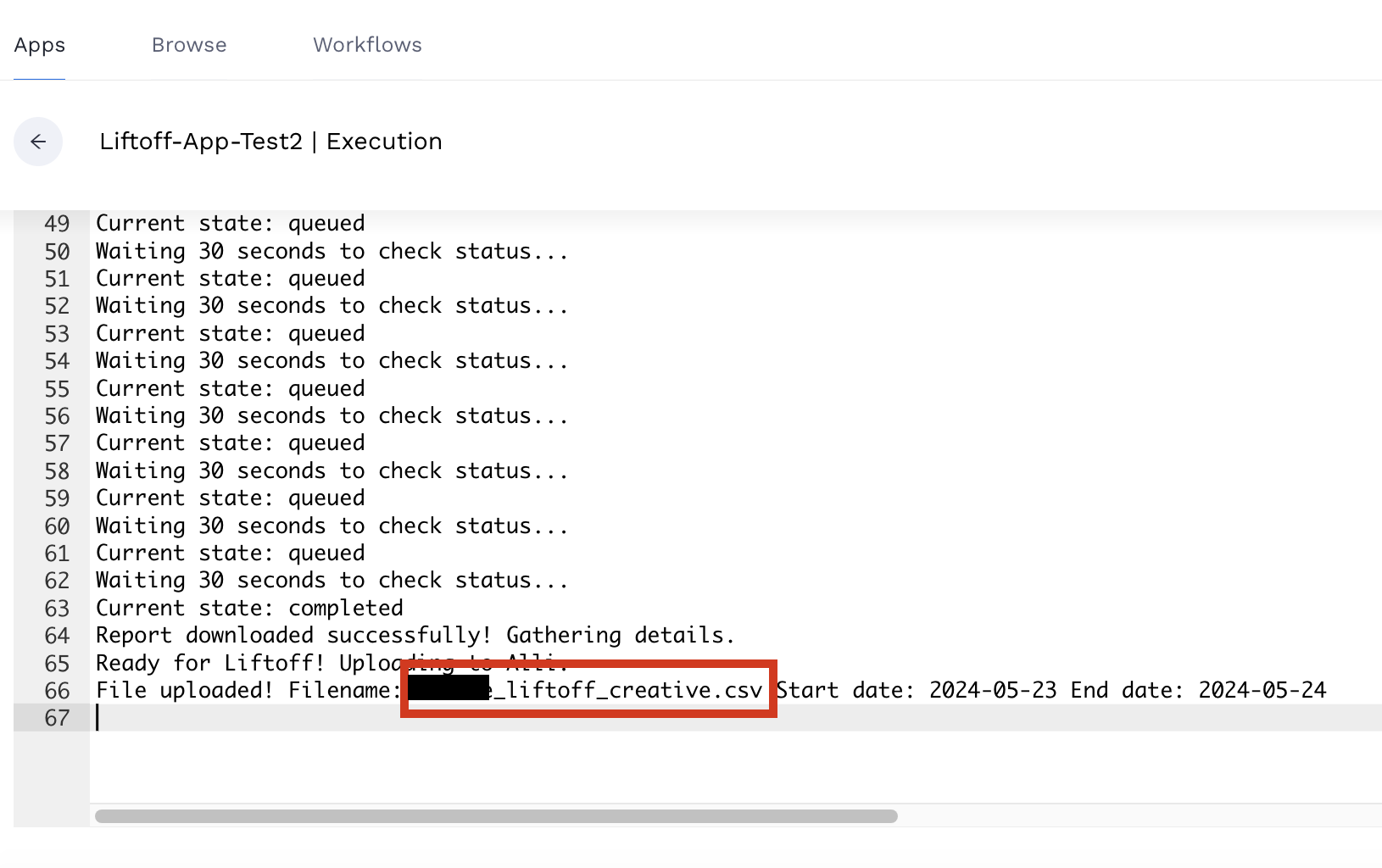
Once your app is set up and has run successfully (don’t forget to set a schedule!), go to Executions, open up the most recent one, and copy the filename at the bottom.
2. Create Alli Cloud Storage Datasource
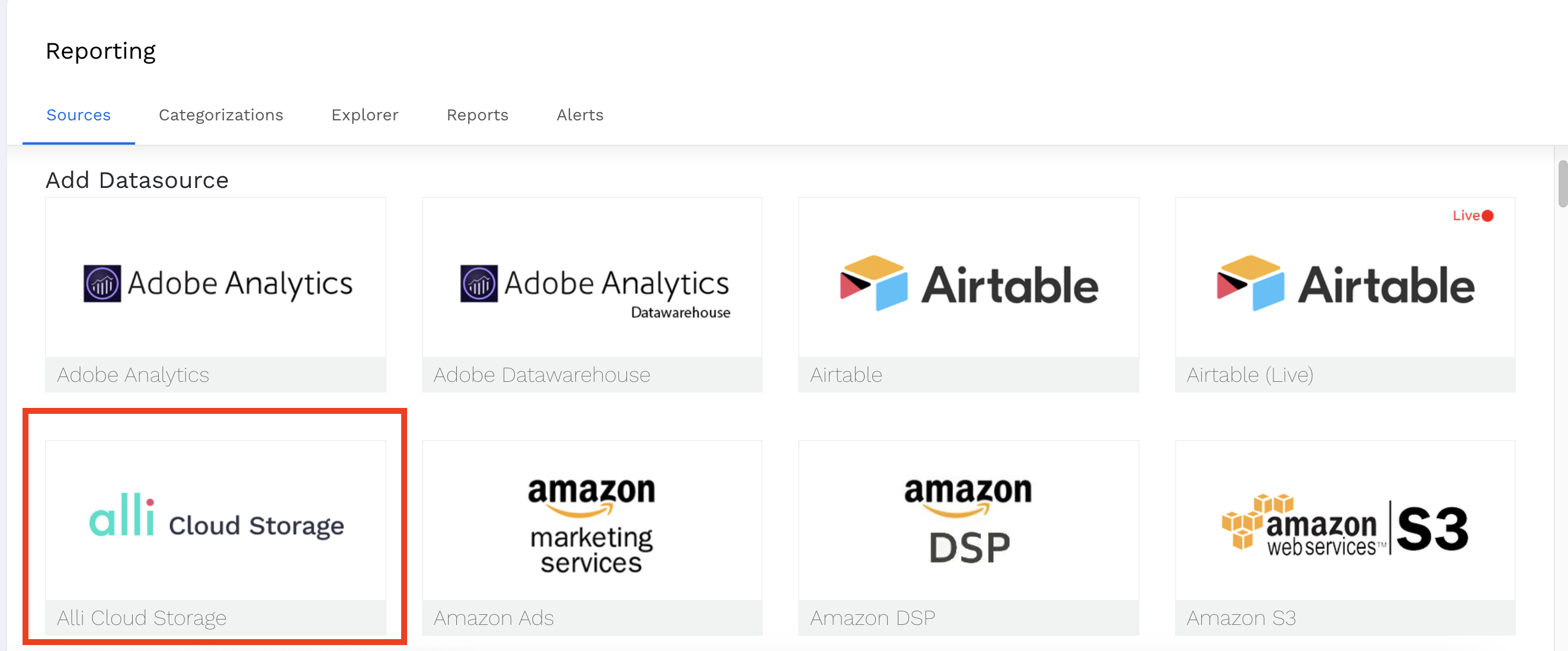
Go to Data Sources, Add a New Datasource, & select “Alli Cloud Storage”.
For additional configuration, choose “Alli Marketplace” and paste in your filename from the API execution.
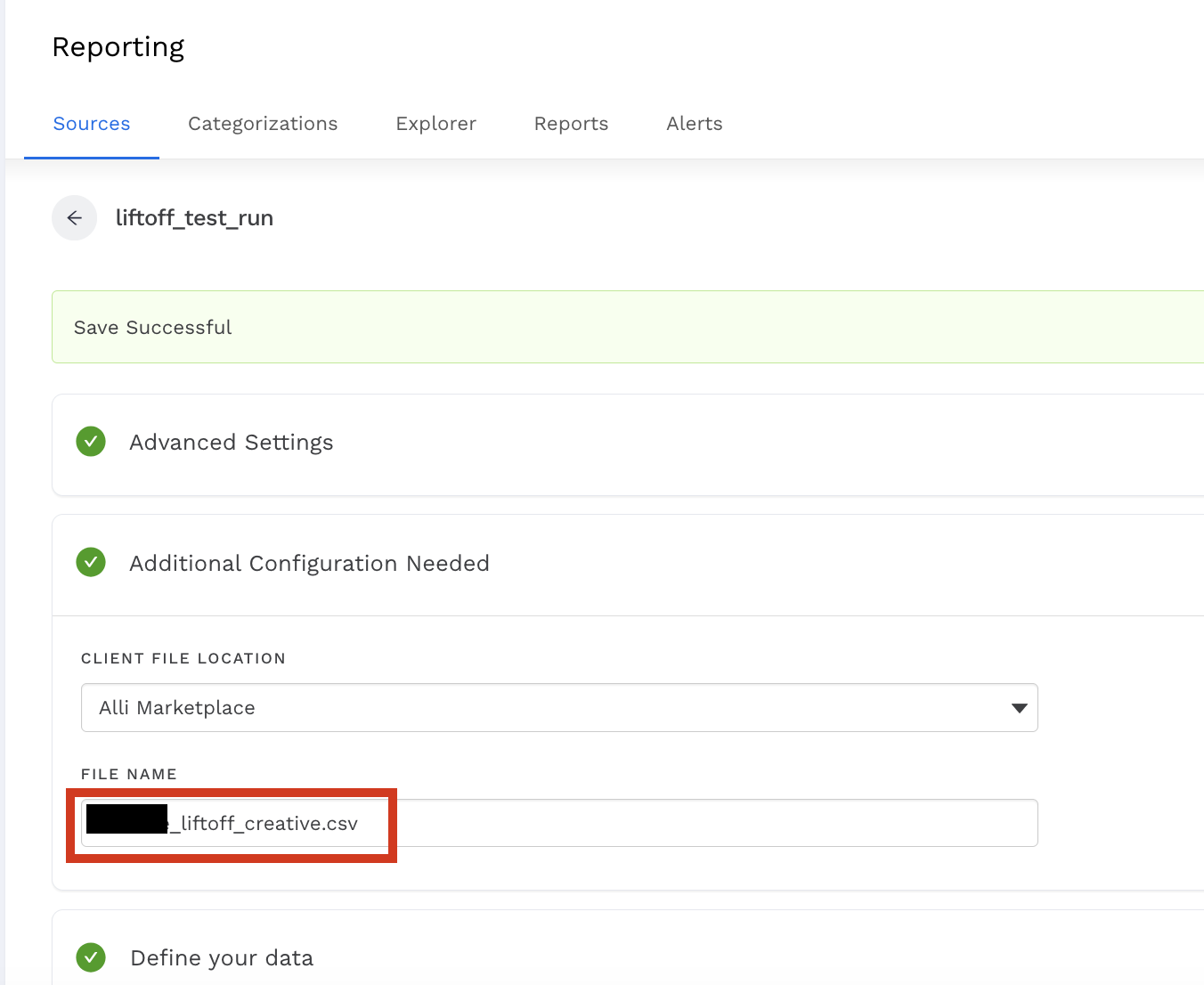
Next, create the dimensions and metrics by uploading this csv template in the Define your Data section:
You will need to manually set the date column as “Date Timestamp” from the dropdown:
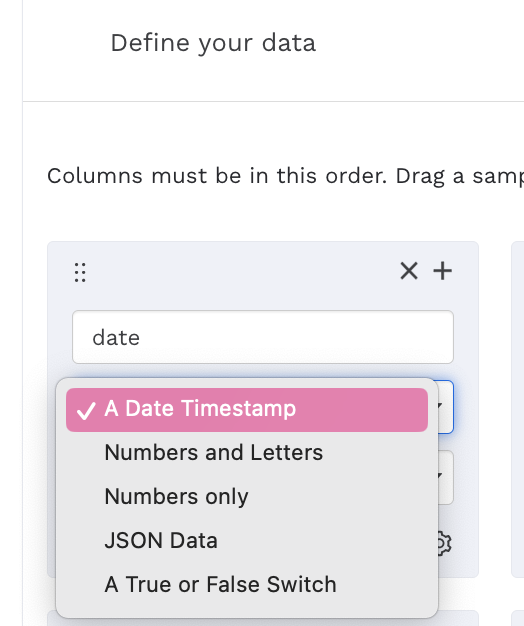
And set the following Attribute / Metrics as “Numbers only” in their respective dropdowns.
|
spend |
cpm |
cpa |
|
impressions |
cpc |
|
|
clicks |
ctr |
|
|
installs |
cpi |
|
After creating your datasource, copy the ID from the datasource URL to use in the next step.
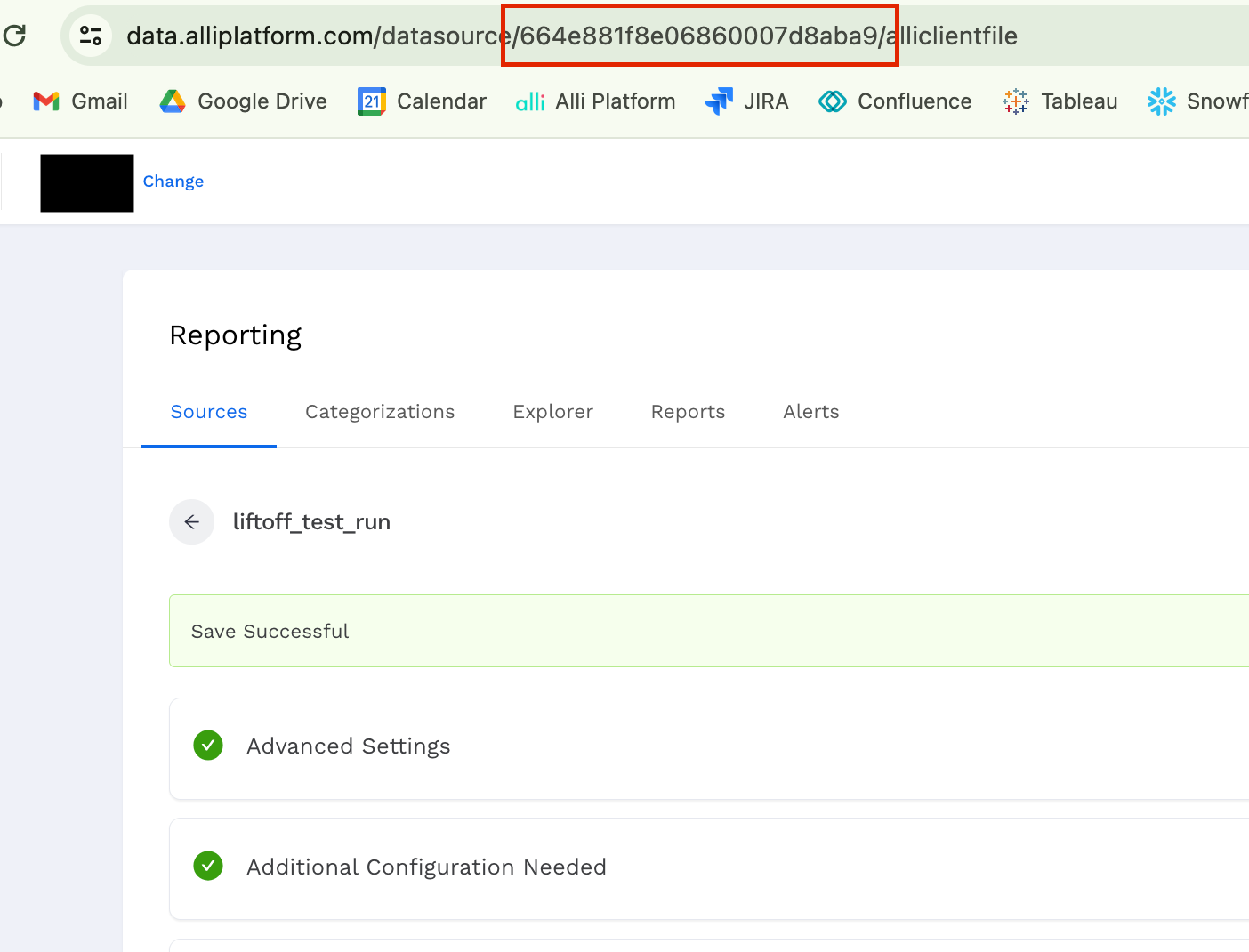
3. Create a Force Sync App
Finally, you’ll make a Marketplace Force Sync app for the datasource.
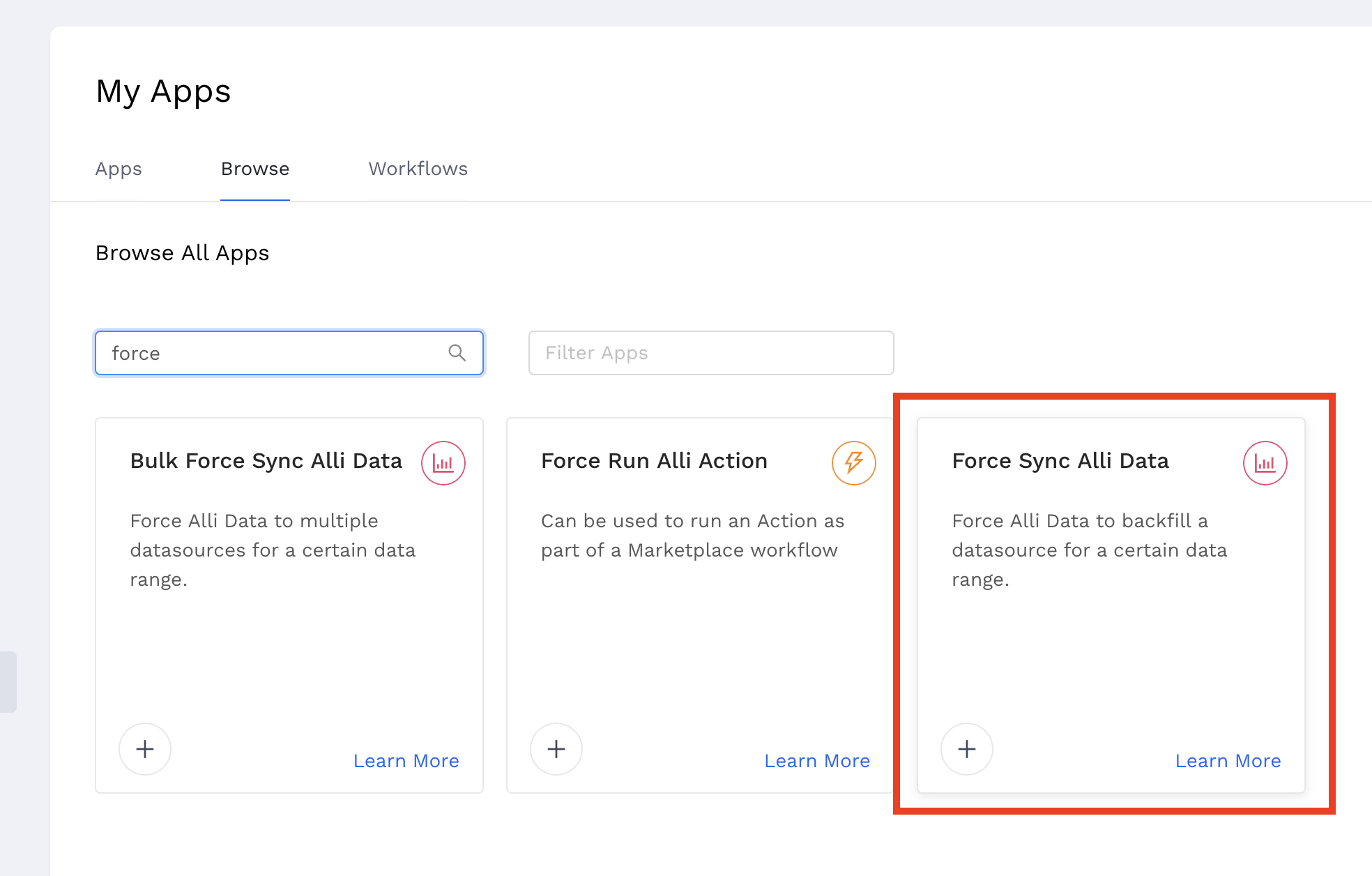
Trigger the sync to run after the API app you created initially.
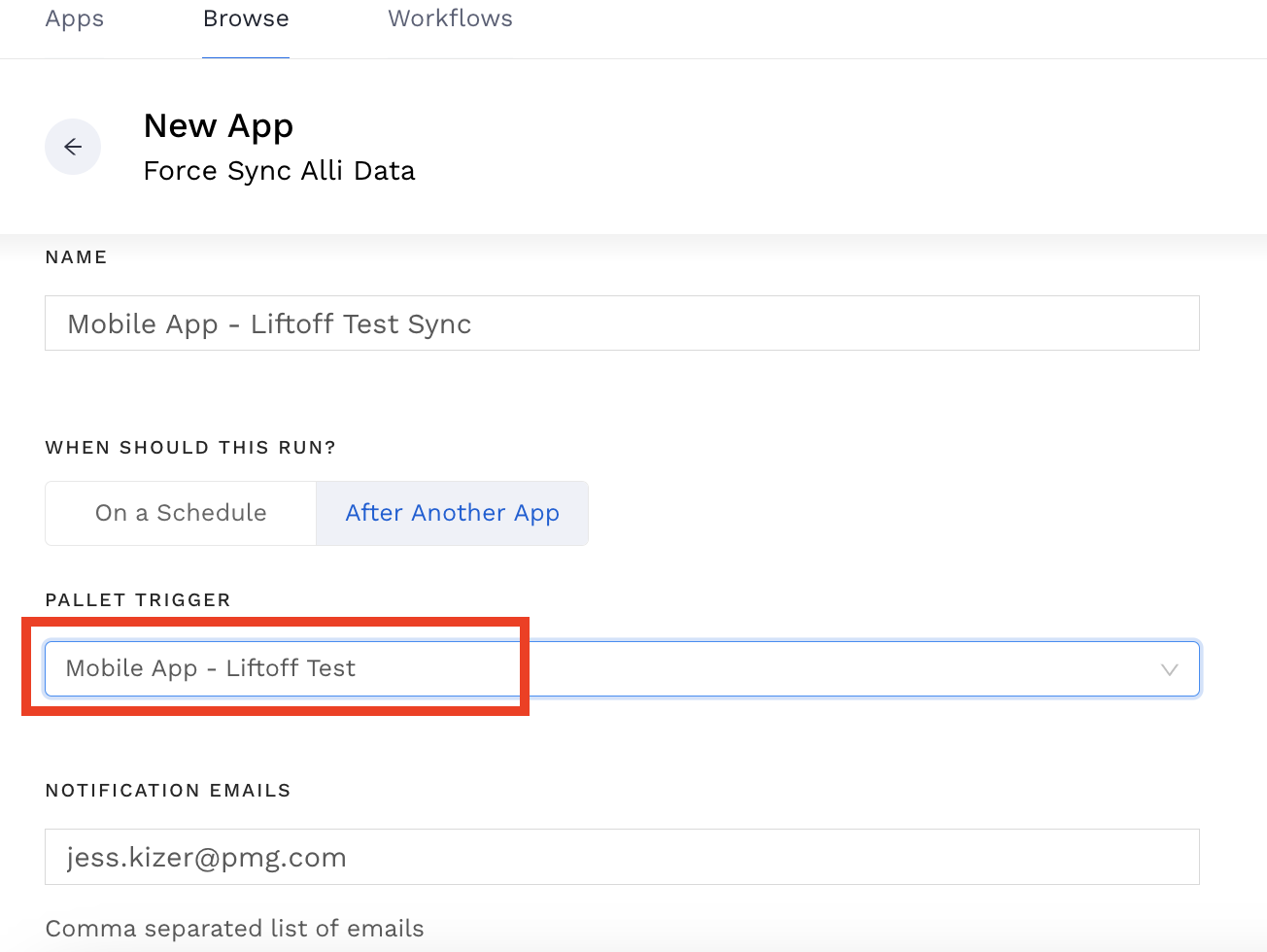
Paste in the datasource ID you copied from before.
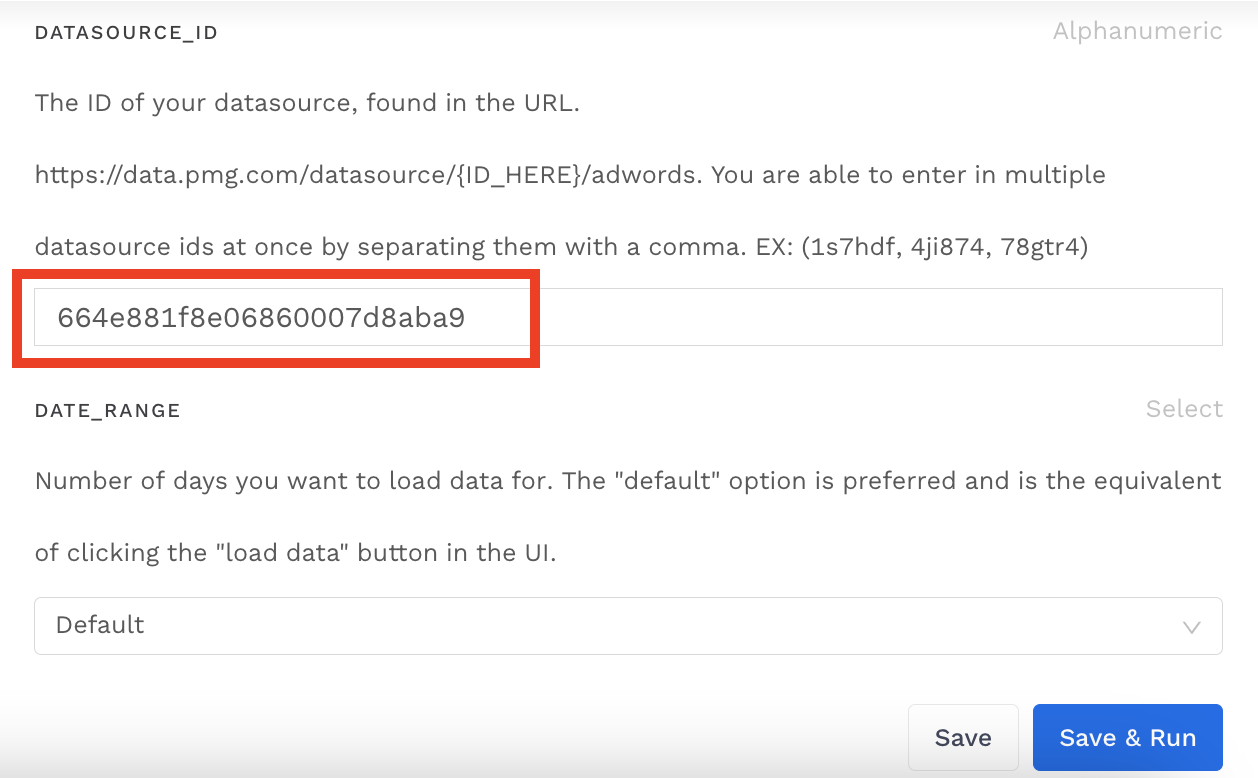
Run the Force Sync app, give it a bit to load, and you have Liftoff!
Copy CodeCopy Code
A good way to QA to make sure you’ve brought in the data is by navigating back to your App, check to see that dates were loaded in that file, and confirm that your datasource loaded the data with minimal errors.